The new search is currently an opt-in feature. If you would like it enabled in your platform, please contact your Customer Success Manager (CSM).
If you are using the legacy search, please see Legacy search.
If you have opted in for the new search experience, the search bar is located at the top of the screen. You can also access it by clicking the Search option on the side navigation:

Performing a search
-
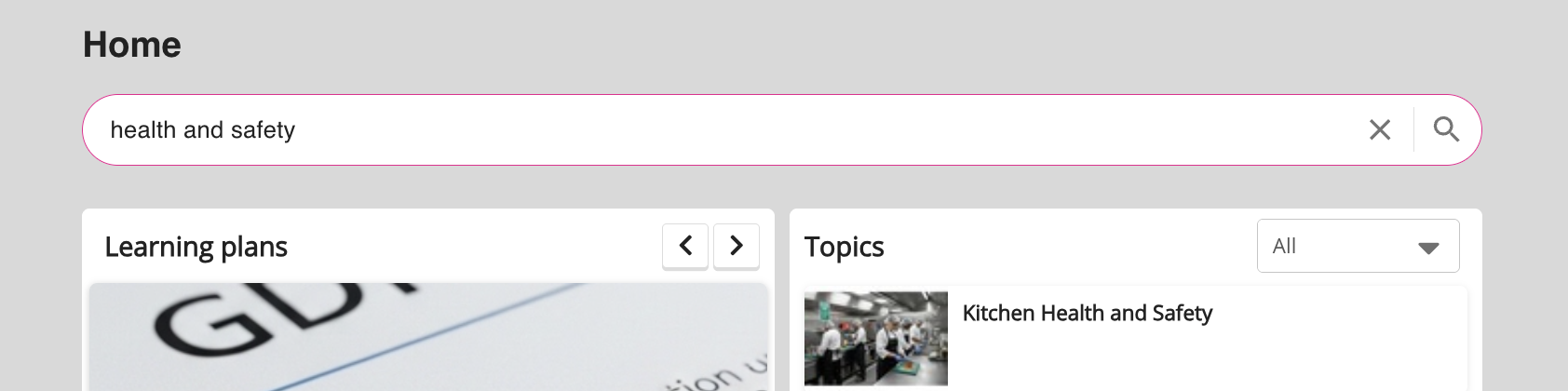
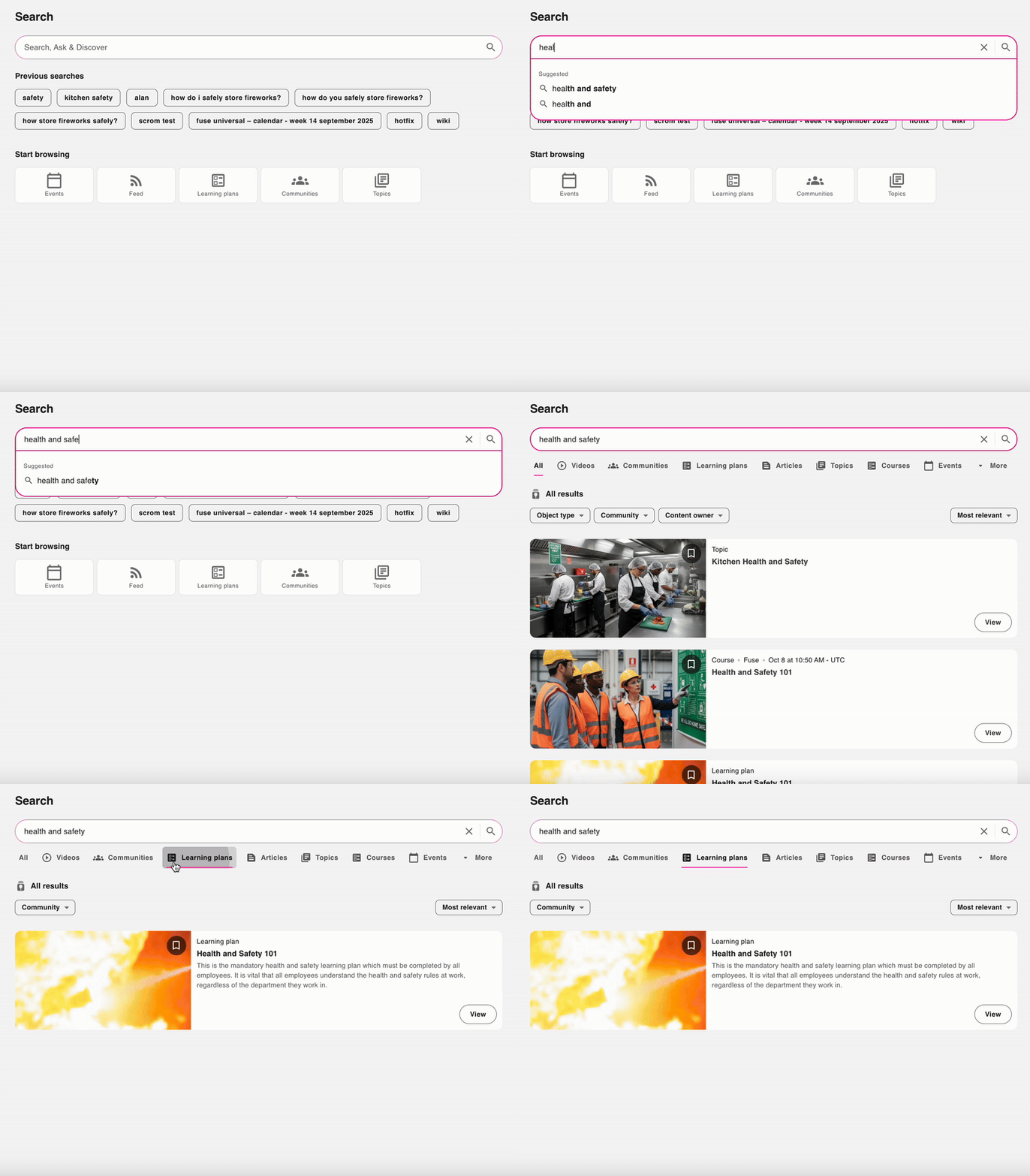
In the search bar at the top of the screen, enter a keyword, phrase or question. For example, “Health and safety” or “How do I safely store flammable liquids?”.
-
Press the Enter key or click the search icon.
-
If you have:
-
Entered an ordinary keyword-based search, a list of matching available content is returned.
-
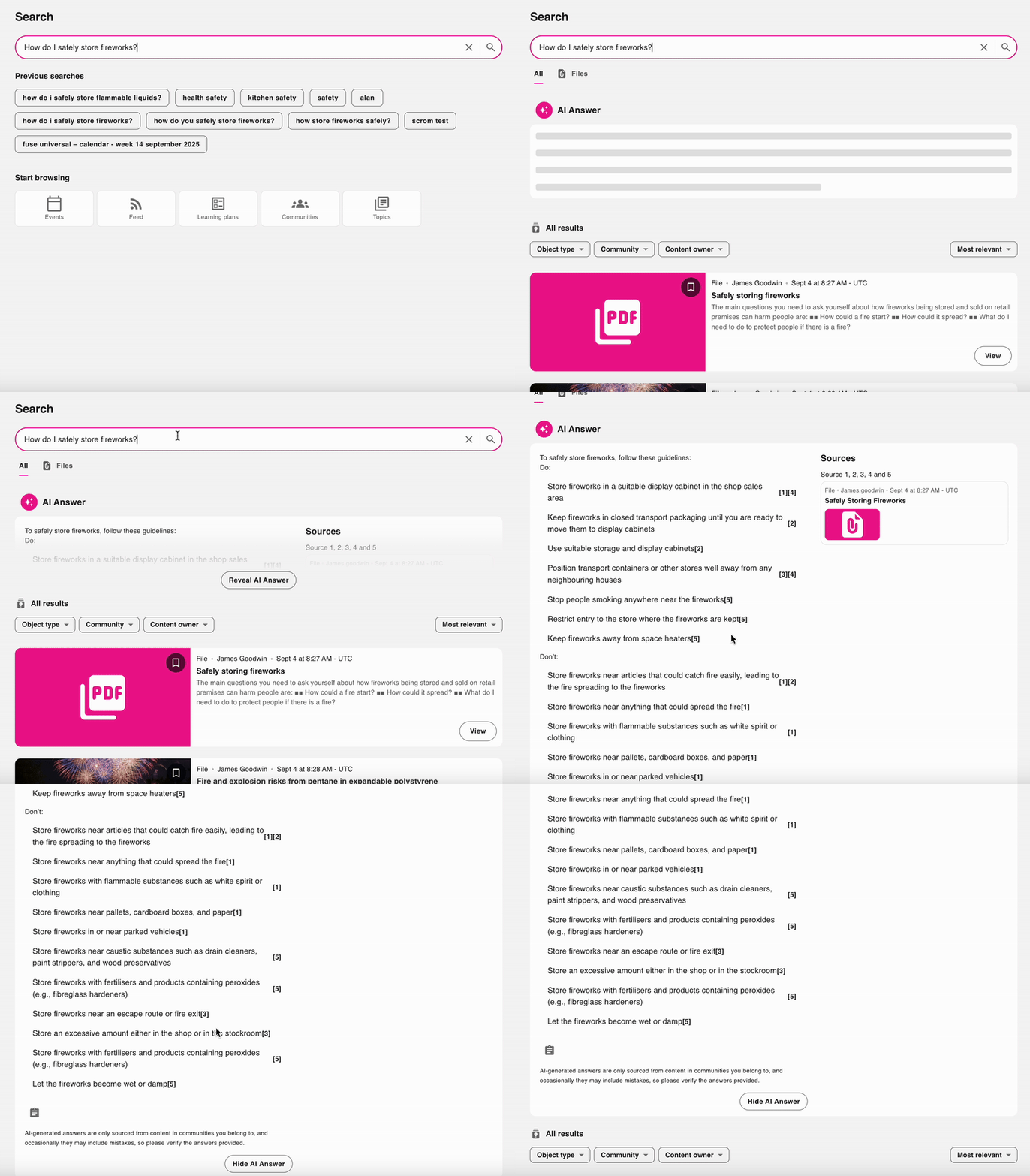
If you've asked a question and you have Fuse’s AI Answers feature enabled in your platform, and an applicable answer can be sourced from content and communities you have access to, you may be presented with an AI-generated answer above the keyword search results.
-
-
[Optional] You can narrow down the keyword search results using the content filters at the top of the search results.
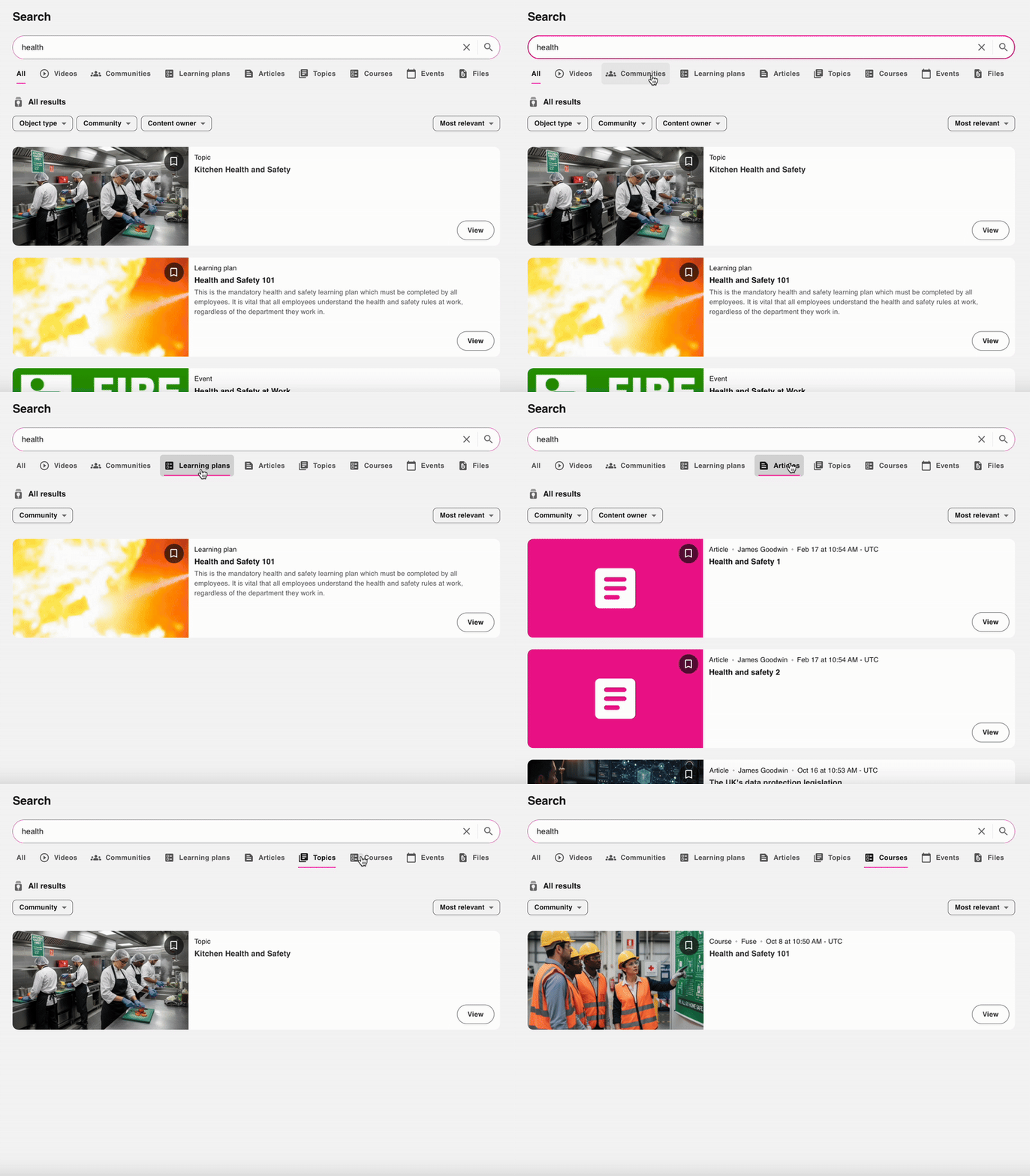
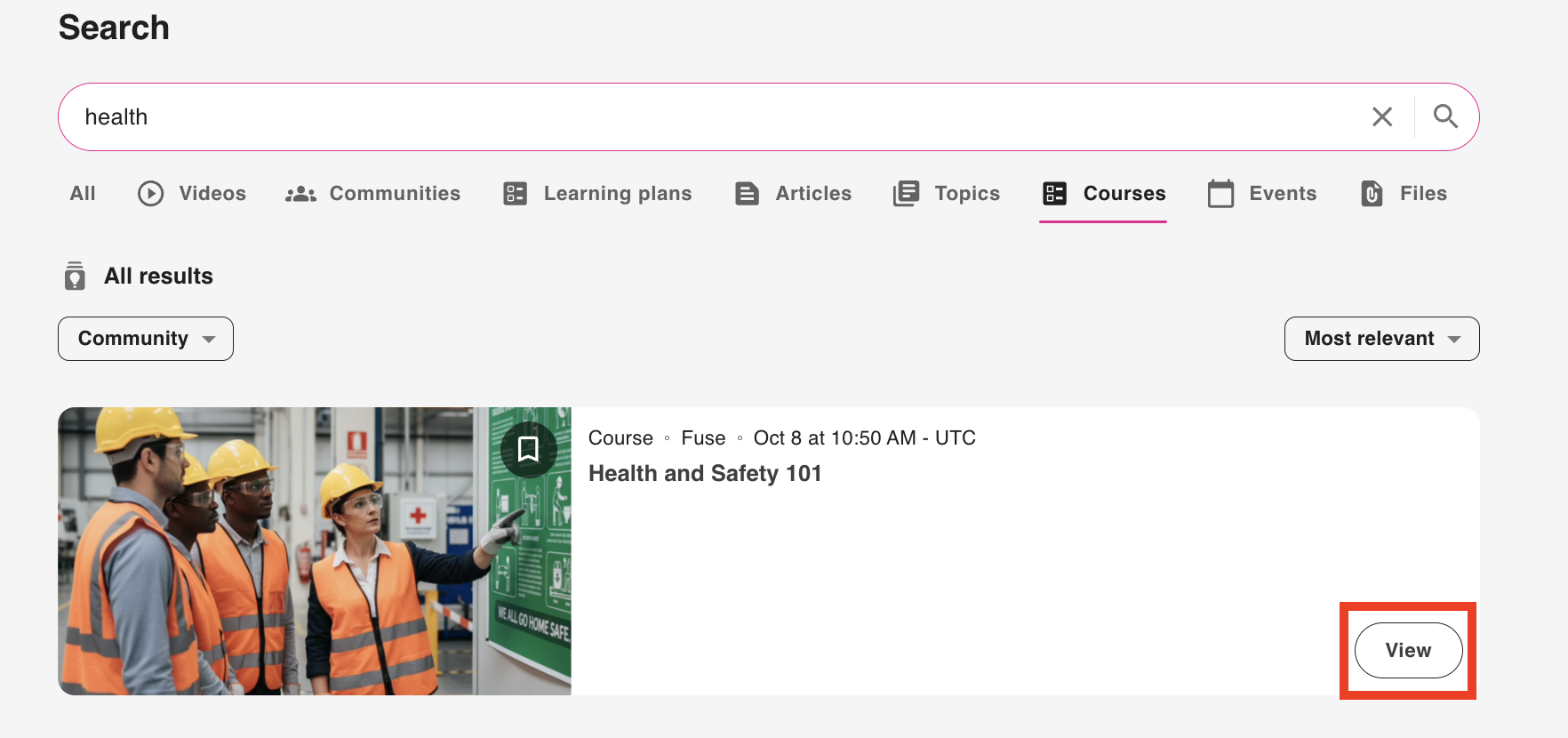
For example, if the results include certain content types that match your entered search term, you can select one of them so that the search results only show a selected content type. For example, selecting Learning plans will narrow the results so that the results only show learning plans that match your entered search term.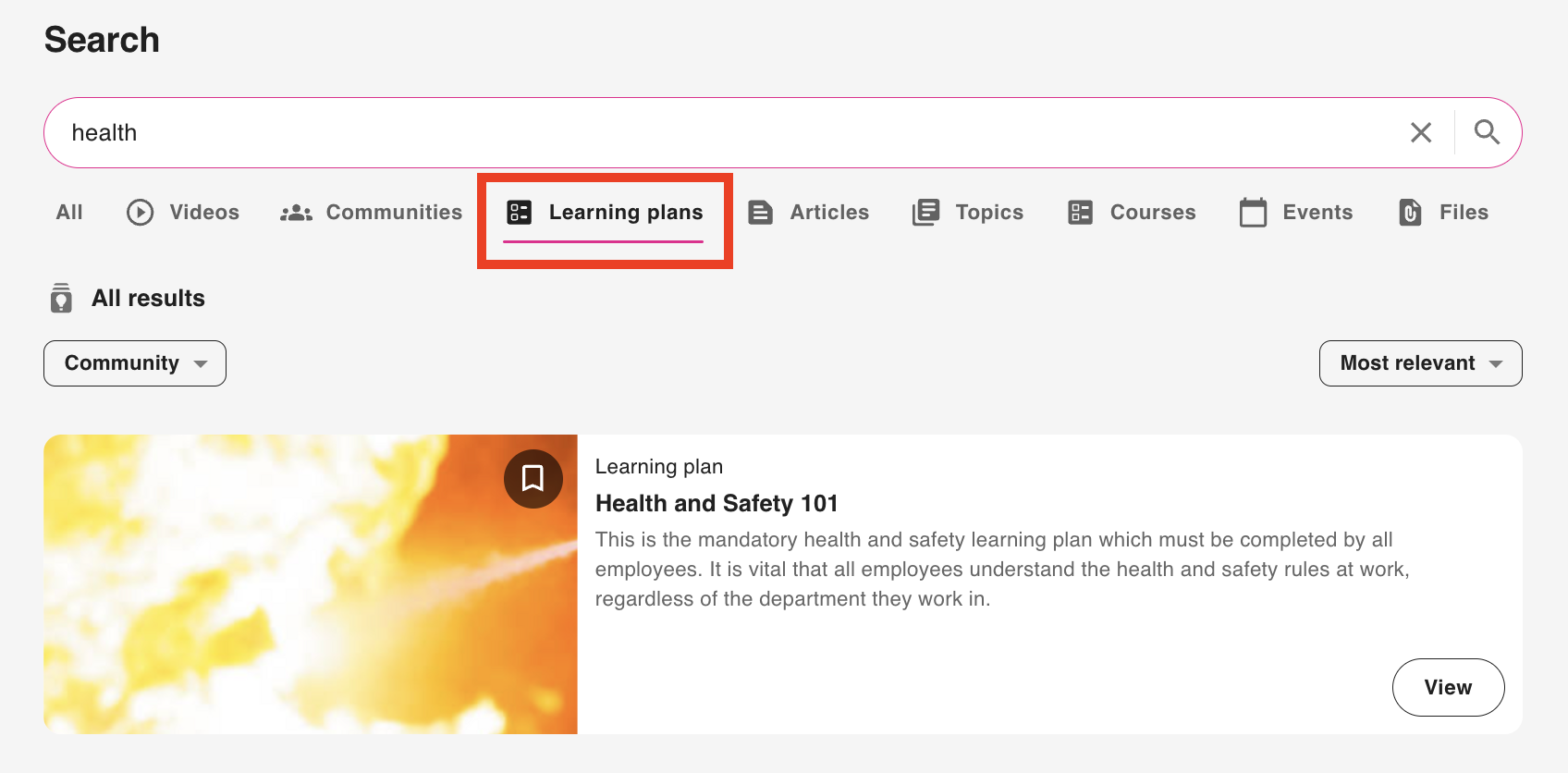
You can also narrow down the results using the specific filters within each content type. For example, if you have filtered the results to only show learning plans, you can then filter the list of learning plans by community so that it only shows learning plans from a particular community.

-
When you have found the item you are looking for, click the View button on the result card to open it.