
If your device supports biometrics and your organisation has it enabled, you can log in to the Fuse 4 mobile app using biometrics, which is faster, easier and more secure, and means you don’t have to enter your login credentials. Biometrics use a person’s unique physical or behavioural characteristics to identify or verify who they are. Common examples include: fingerprint, facial recognition, voice recognition, or iris or retina scans.
This is an optional feature for the Fuse 4 mobile app. If you would like the biometrics feature enabled for your organisation’s Fuse 4 mobile app, please reach out to your Customer Success Manager (CSM).

Setting up biometrics on the Fuse mobile app
To set up biometrics on the Fuse 4 mobile app:
-
Open the Fuse 4 mobile app.
-
In the Your company domain field, enter the domain of your platform as shown in your platform’s URL. For example, if the URL of your platform is companyname.fuseuniversal.com, you would enter “companyname“ as shown below:

-
Tap Continue.

-
Enter the username/email and password you use to log in to the platform, and then tap Continue.
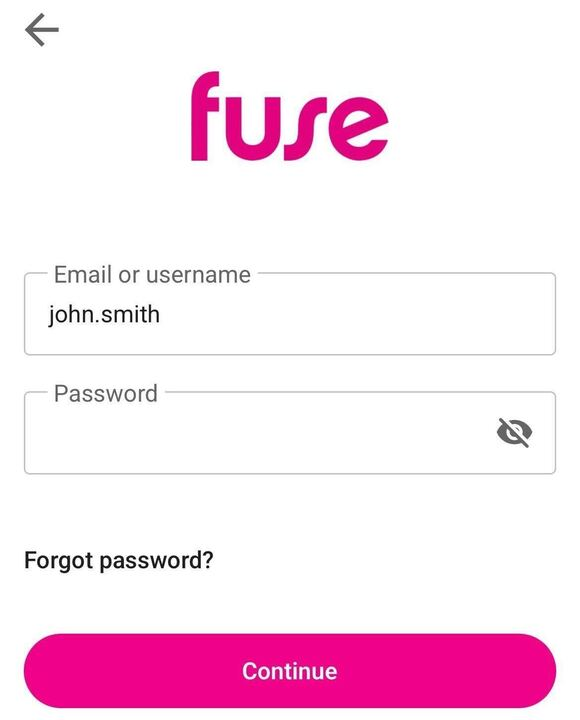
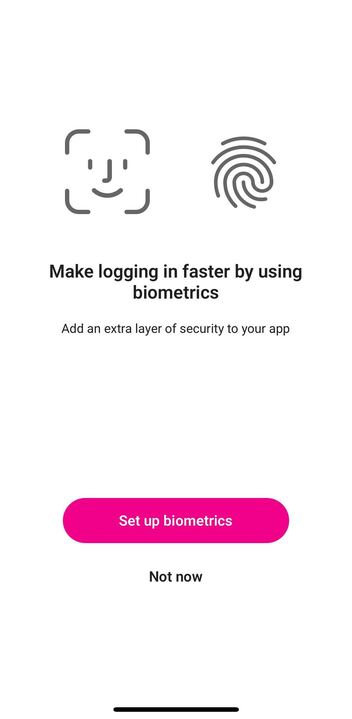
The biometrics setup screen appears.
-
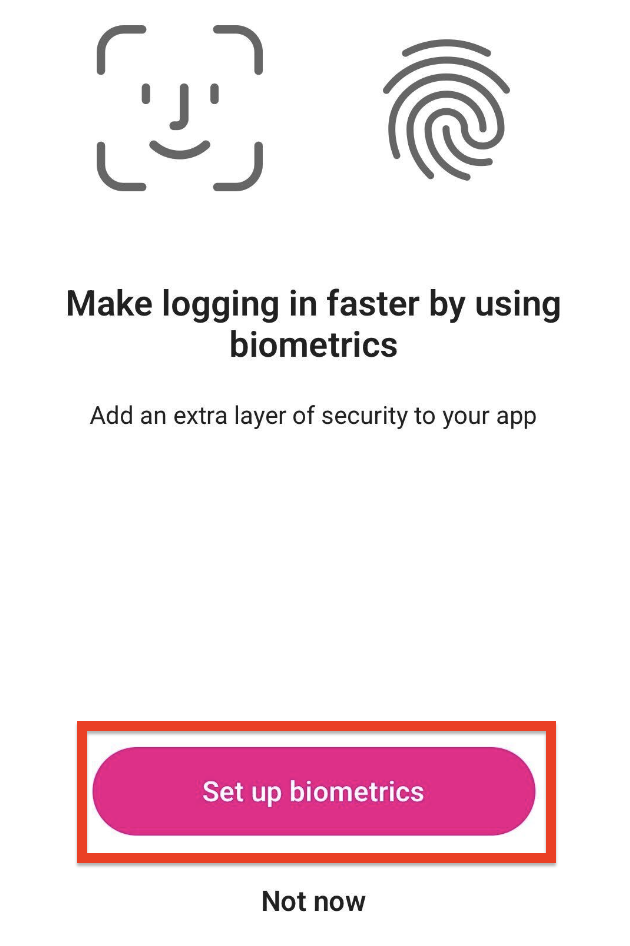
Tap Set up biometrics.
-
When required, grant permission for the Fuse mobile app to use biometrics, such as Face ID.
For example, if you have an iOS device that has Face ID, you will be prompted to give the Fuse mobile app permission to use it: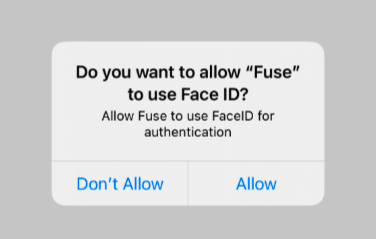
You are logged in to the mobile app. After biometrics has been set up for use with the Fuse mobile app on your device, you can use the selected method to authenticate.