
The new search is currently an opt-in feature. If you would like it enabled in your platform, please contact your Customer Success Manager (CSM).
If you are using the legacy search, please see Legacy search.
You can narrow down the results of a search using the content filters at the top of the results.
Filtering search results by a specific content type
You can narrow down the search results by a single content type by clicking on it above the search results. Content types are only shown if the search results include matching items of that type. For example, if there are items listed in the search results that are videos, communities, learning plans, articles, topics, courses and events, you will see selectable filter options for these above the search results.
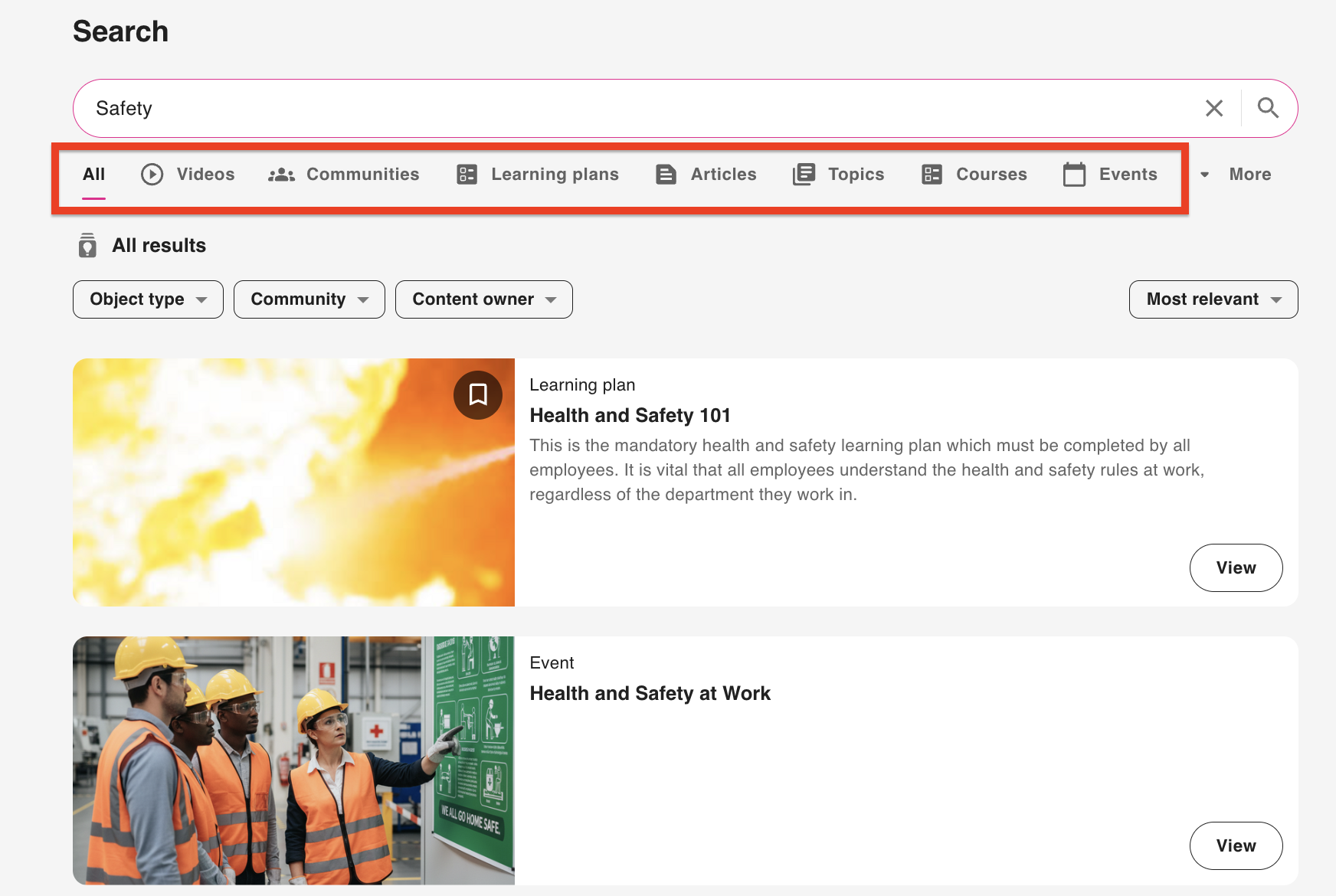
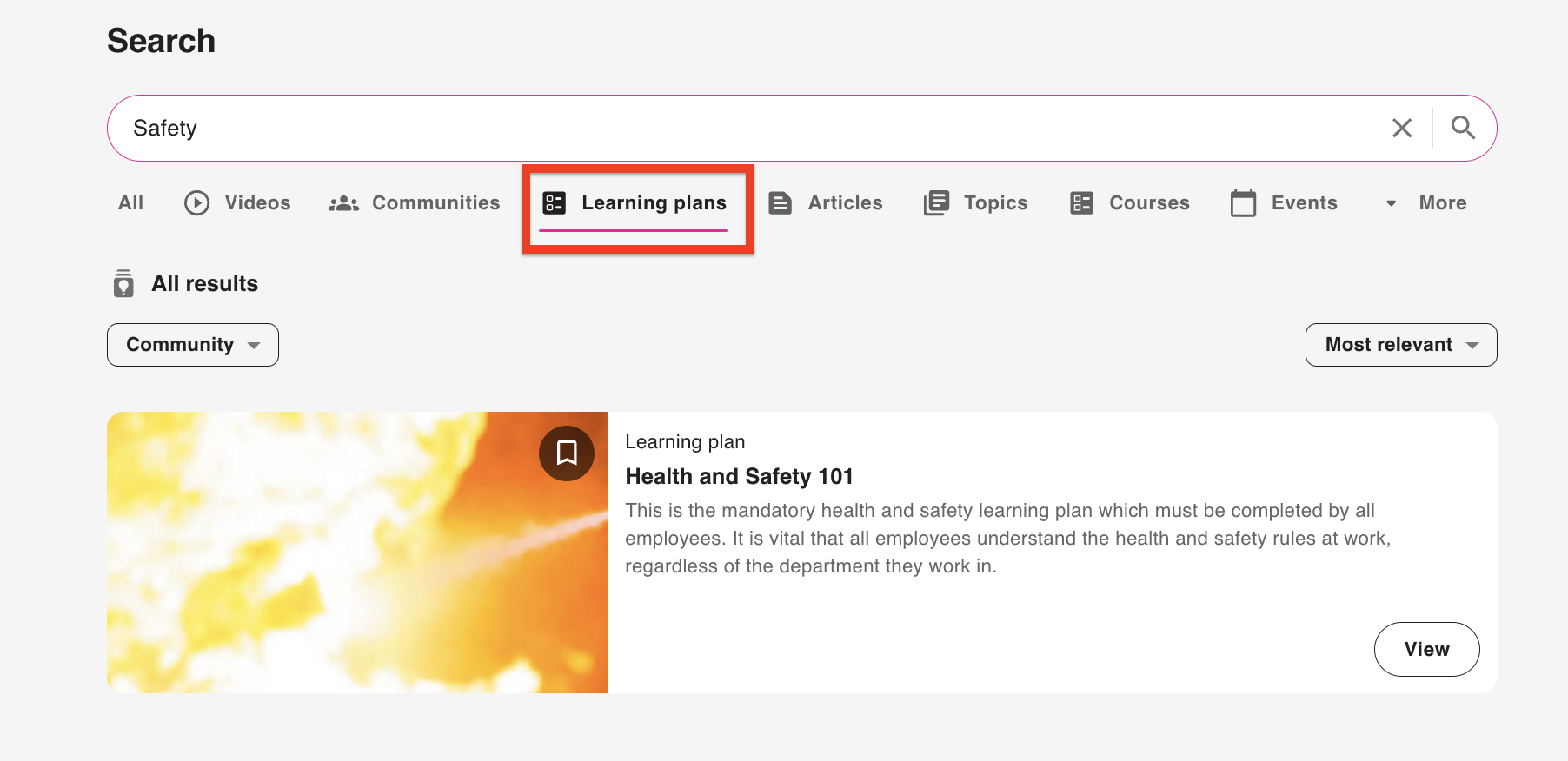
Selecting one of the available options above the search results narrows the results by the selected content type. For example, selecting the Learning plans filter option narrows down the search results to only show the learning plans that match your query.
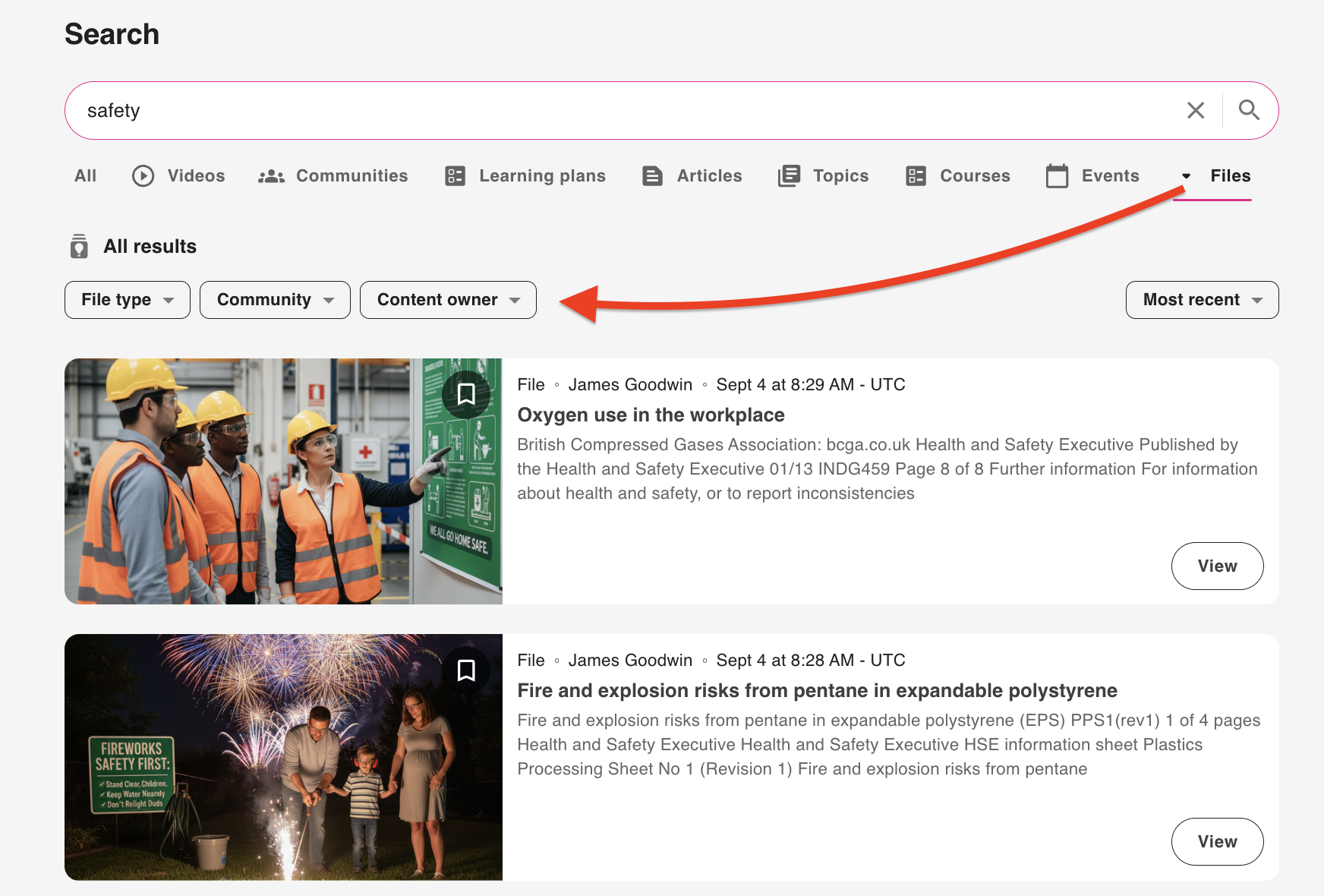
Content-specific filters
Where applicable, for each of the selectable content filters, you will also see additional content-specific filters, allowing you to further narrow down the results. For example, if you have selected Files, you will see additional file-specific filters, allowing you to filter by File type, Community, and Content Owner.
General filters
You can filter the results using the filters at the top of the search results.
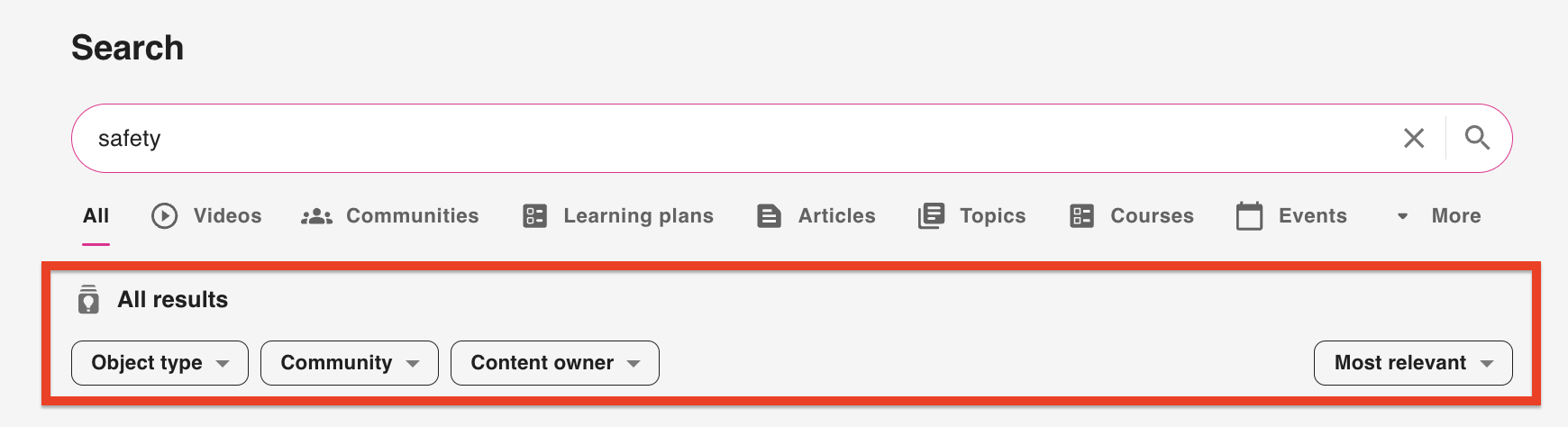
You can filter by:
-
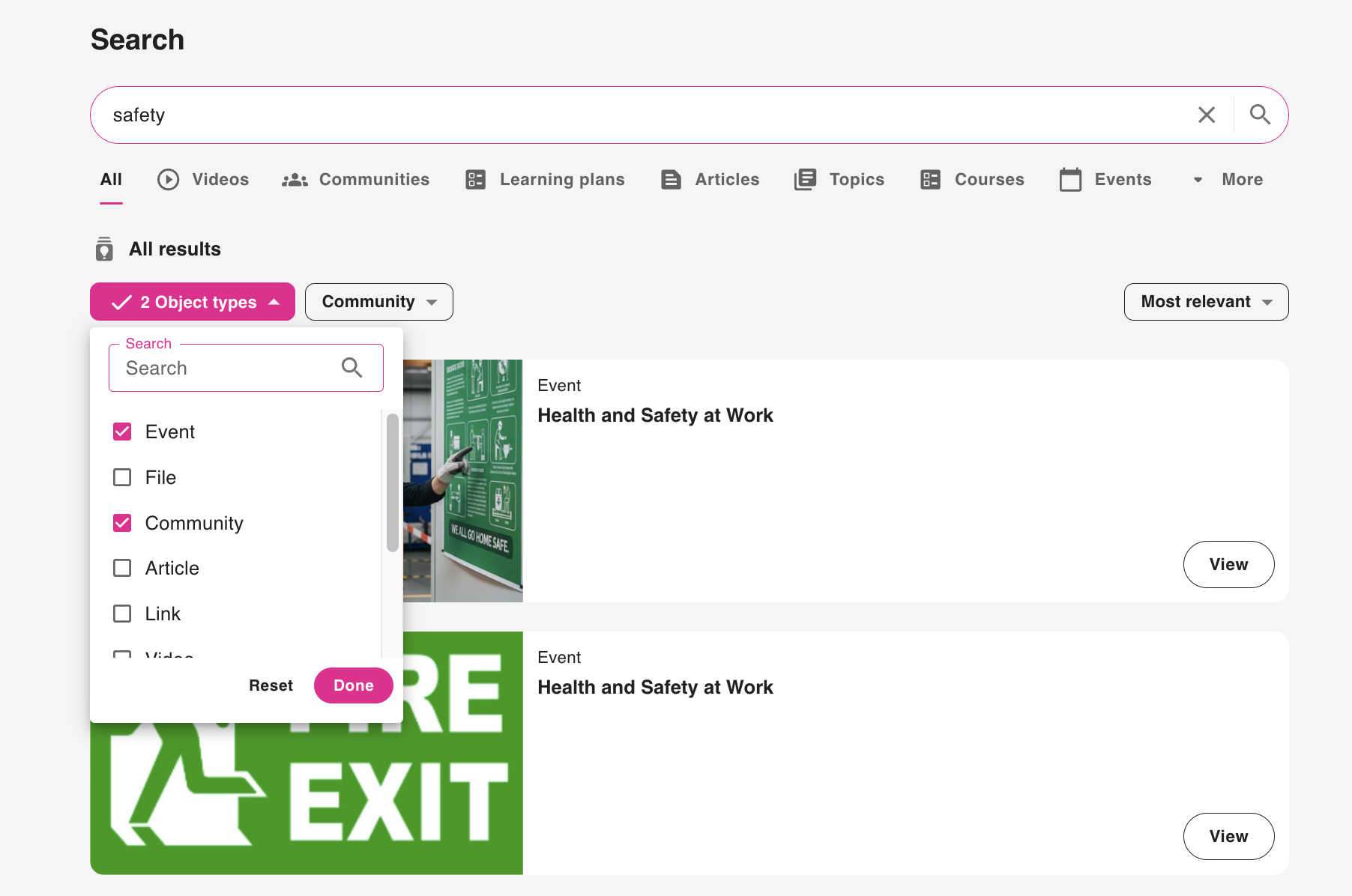
Object type: Filter the results by one or more available content types by selecting the checkboxes. For example, you might want to narrow down the results so that they only include files and articles that match your query.
-
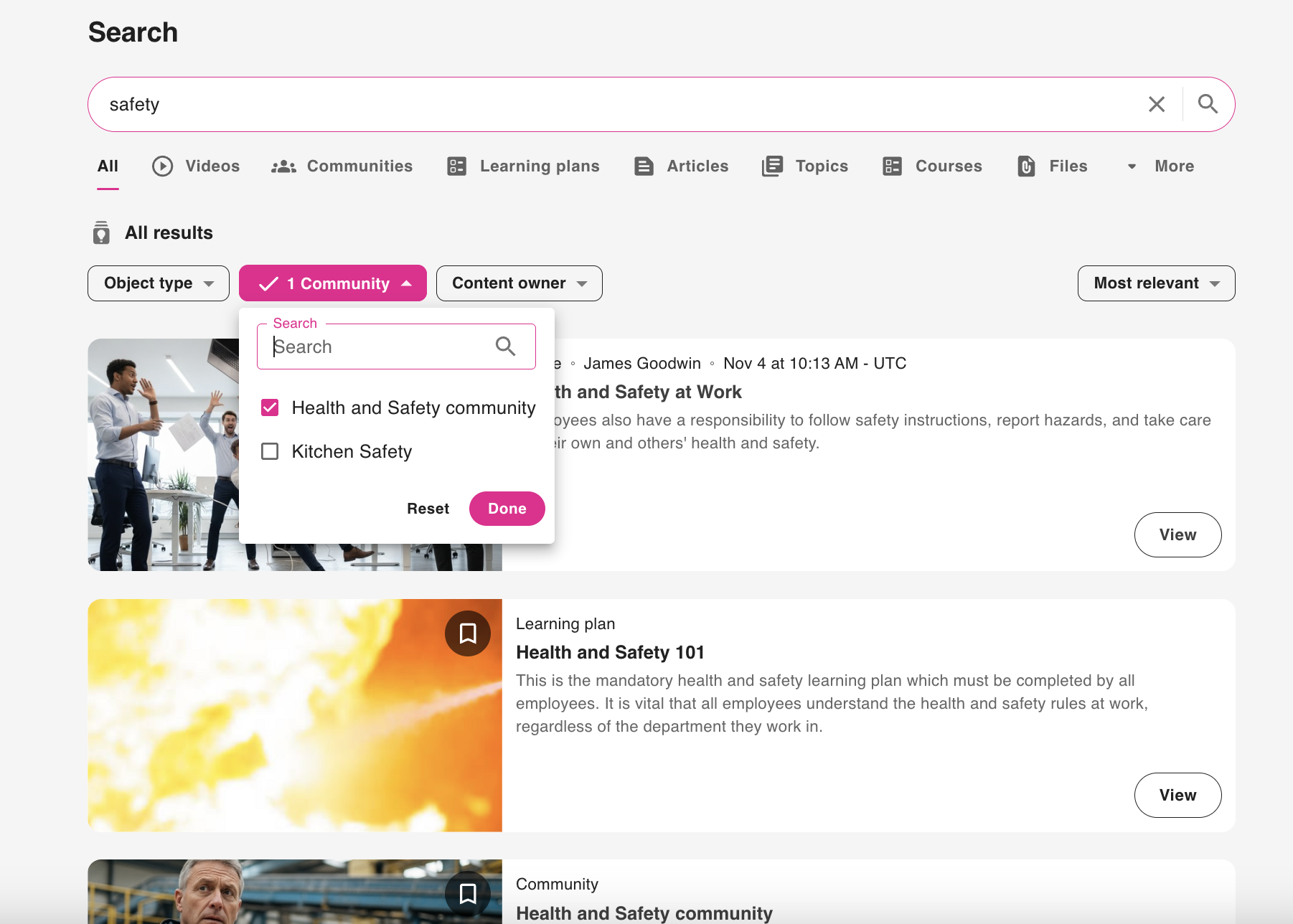
Community: Filter the results so that they only include content from one or more communities. For example, there might be a “Health and Safety” community on your platform, and you might be looking for specific health and safety content, so in order to find that content easily, you might filter the results by the “Health and Safety” community.
-
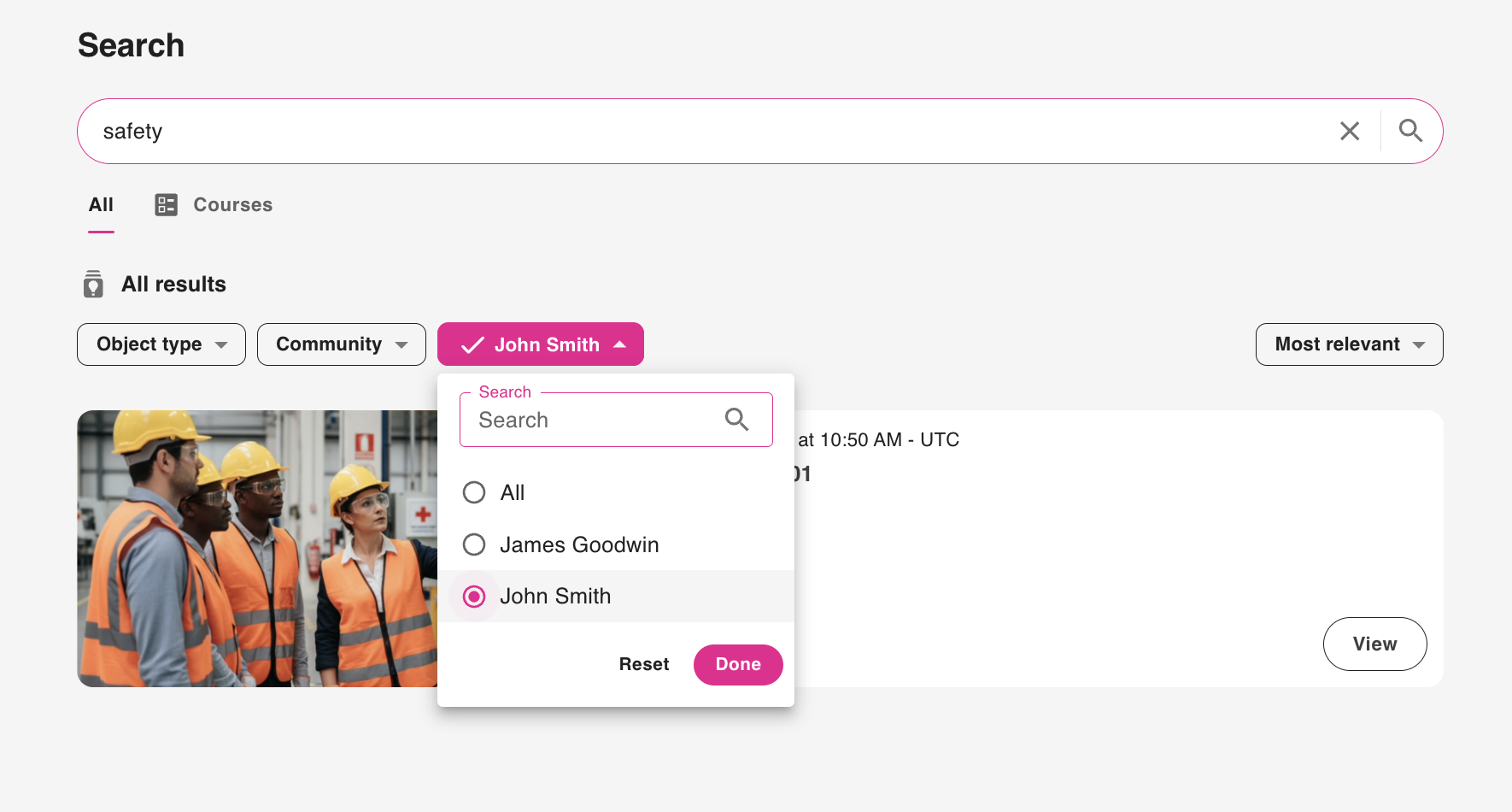
Content owner: Filter the results so that they only include content owned by a particular user on the platform.
-
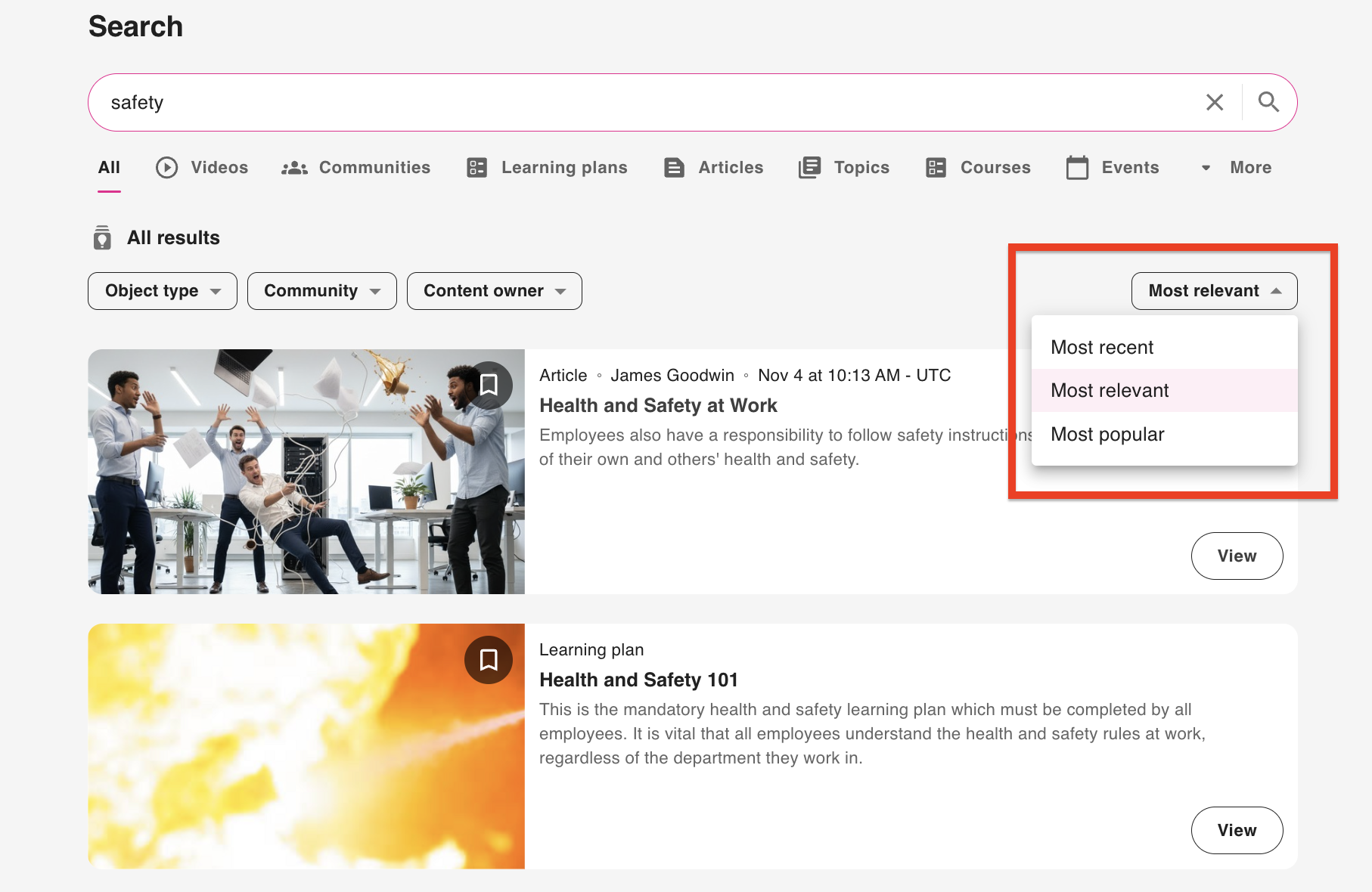
Recency, relevancy, and popularity: You can order the results by relevancy, recency and popularity using the dropdown on the right-hand side of the search results:
-
Most recent: The search results are ordered based on how recently the content was posted to the platform, with the newest content appearing at the top of the results.
-
Most relevant: The search results are ordered based on how closely they match your query, with the most relevant content appearing at the top of the results
-
Most popular: The search results are ordered based on how much they have been interacted with, such as views, with the most popular appearing at the top of the results.
-