
The AI Coach feature is currently in beta and may be subject to change.
When first creating a new AI coach, you should configure the default settings for it, including:
-
Specifying the general settings, such as the name, description and purpose.
-
Setting the personality and tone of the coach, so that it best fits your use cases and subject areas when interacting with users – for example, if your coach is dealing with more strict topics that are more clear-cut and regulated, you might want to make the coach more strict and precise in personality, rather than friendly and empathetic.
-
Setting the policy of the coach, which is essentially guardrails so that the coach knows what it can advise users on and what it cannot, and so that it stays contextually relevant and avoids unrelated or sensitive subject areas.
-
Selecting the large language model (LLM) the coach uses.
To create an AI coach:
-
In the Admin Panel, click AI Coach management.
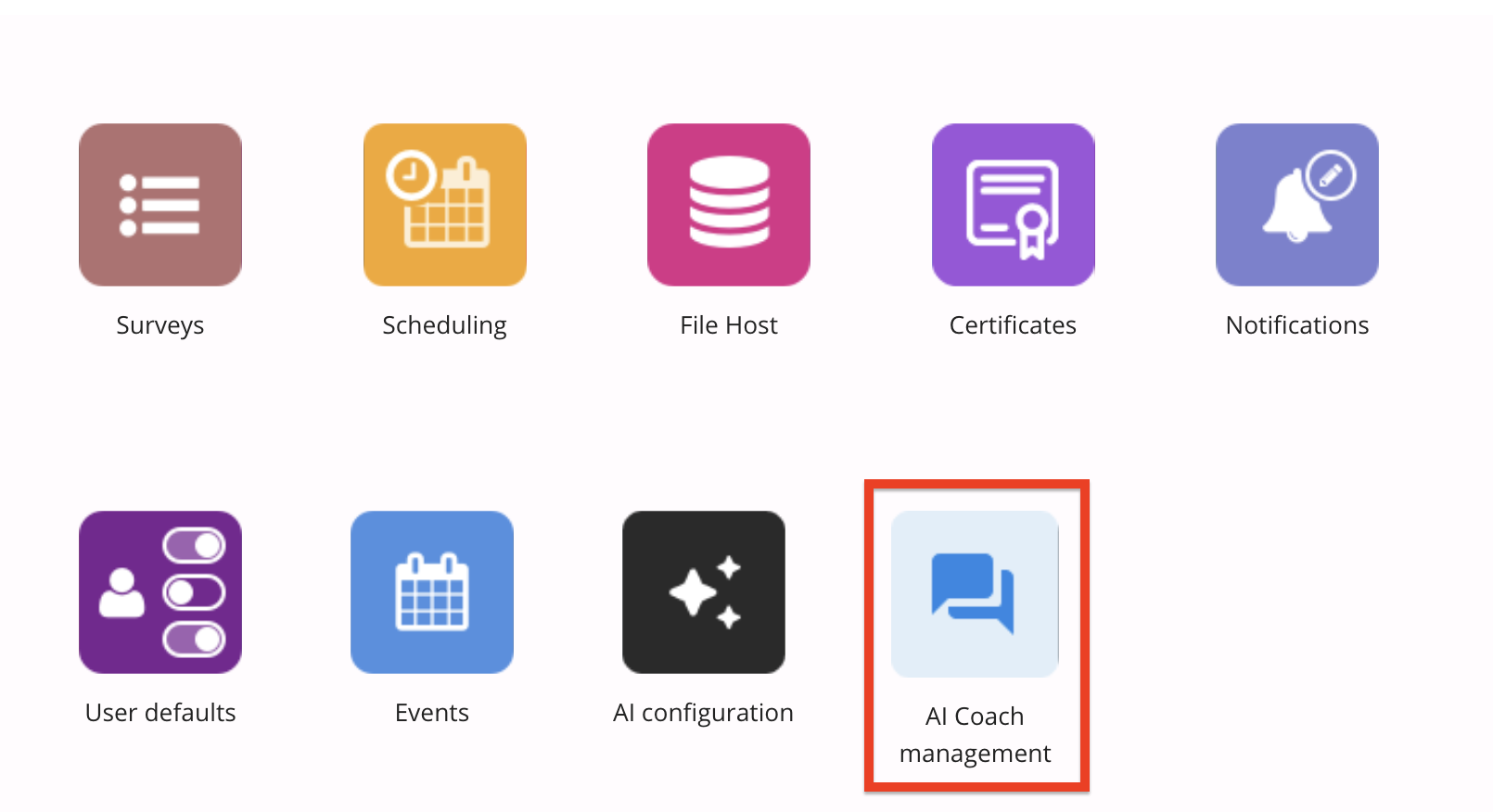
The AI Coach management screen opens.
-
Click Create coach.

The coach creation screen opens.
-
Configure the settings in the tabs on the screen, as described below in the Available tabs and settings section.

-
When you have finished configuring the settings, click Save.

Available tabs and settings
The following tabs and settings can be configured:
Settings
In the Settings tab, you must specify the general settings for the coach, including the name, description, as well as setting out the coach’s purpose.
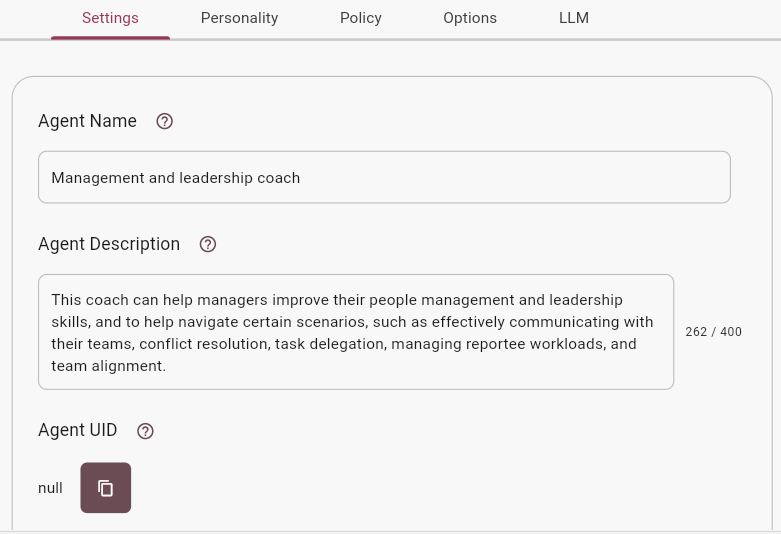
The following settings are available in the Settings tab:
|
Setting |
Description |
|---|---|
|
Agent Name |
This is the name of the coach that will appear to users when they access it on the side navigation in the platform. |
|
Agent Description |
This is the description of the coach. |
|
Agent UID |
This field is used for integrations. Initially the UID field field is empty when you first create a coach. After you have saved the coach, the field will be populated with a UID that can be used for integration purposes. |
|
Agent Purpose |
The Purpose outlines the main role or function of the coach. For example, this could range from customer support, providing information, facilitating transactions, to entertaining users. Defining the purpose is critical because it guides the overall design of the coach, including its interactions, responses, and the specific needs it addresses for its users. |
Personality tab
In the Personality tab, you can set the personality of the coach from a number of preset personalities, or create a custom personality that more precisely suits your needs. Depending on the subject area and the target user case, you might want the coach to converse with a particular personality, style and tone.
Example: If your coach is coaching users on health and safety regulations in the work place, or dealing with something more clear cut, serious and highly regulated, and something that must be more strictly adhered to, you might select Strict & Precise, rather than Friendly & Empathetic to ensure that users are always aware that the information given is of a more serious nature.
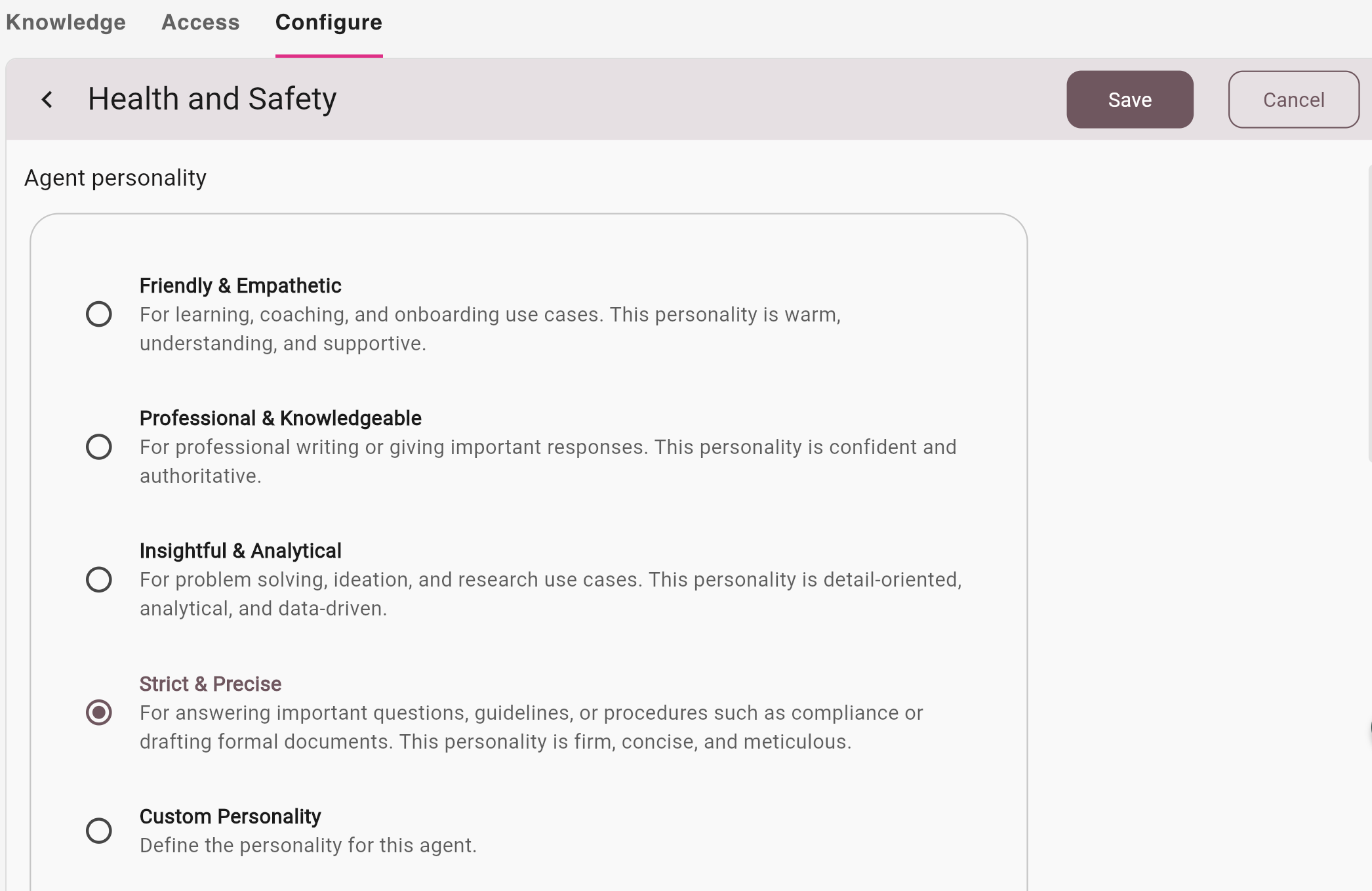
The following personality settings are available in the Personality tab:
|
Setting |
Description |
|---|---|
|
Friendly & Empathetic |
For learning, coaching, and onboarding use cases. This personality is warm, understanding, and supportive. |
|
Professional & Knowledgeable |
For professional writing or giving important responses. This personality is confident and authoritative. |
|
Insightful & Analytical |
For problem solving, ideation, and research use cases. This personality is detail-oriented, analytical, and data-driven. |
|
Strict & Precise |
For answering important questions, guidelines, or procedures such as compliance or drafting formal documents. This personality is firm, concise, and meticulous. |
|
Custom Personality |
Describe how the coach’s personality should be by entering text in the Personality field. 
|
|
Interaction process |
Icebreaker message instructions: In the Icebreaker message instructions field in the Interaction process section, you can outline how you would like the coach to greet users when they start a new thread. You can provide the coach with information on how to introduce itself, state its purpose, and invite user engagement in a concise manner. The goal is to create a welcoming environment that encourages users to start their inquiry or discussion. 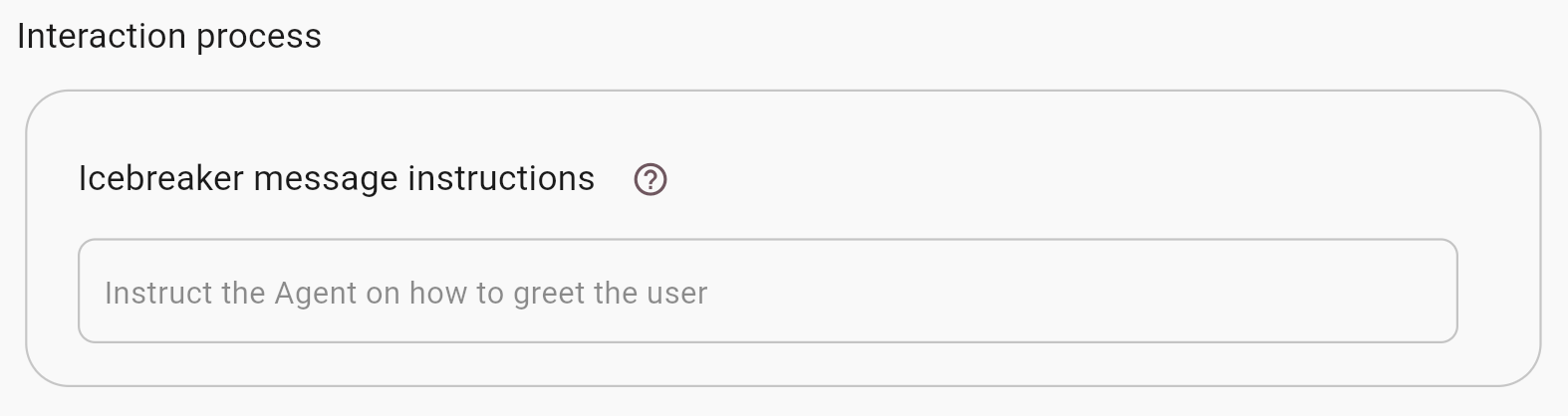
|
Policy
In the Policy tab, you can set the policy for the coach. A policy is effectively like guardrails that dictate what the coach can and cannot do, and the information it can and cannot provide when users ask questions or interact with it. You can select one or more preset polices and then further elaborate and build on those existing policies by describing what you need, as well as specify additional information specific to your context and use cases.
Example: Whether or not the coach can diverge from the set subject area and answer questions on unrelated topics, or if it must strictly stay on topic and only answer questions related to the content and the defined purpose. For example, you may select the Avoid Legal and Financial Advice policy so that in the event a user asks for financial or legal advice outside the bounds of the use case, the coach will limit its responses.
|
Setting |
Description |
|---|---|
|
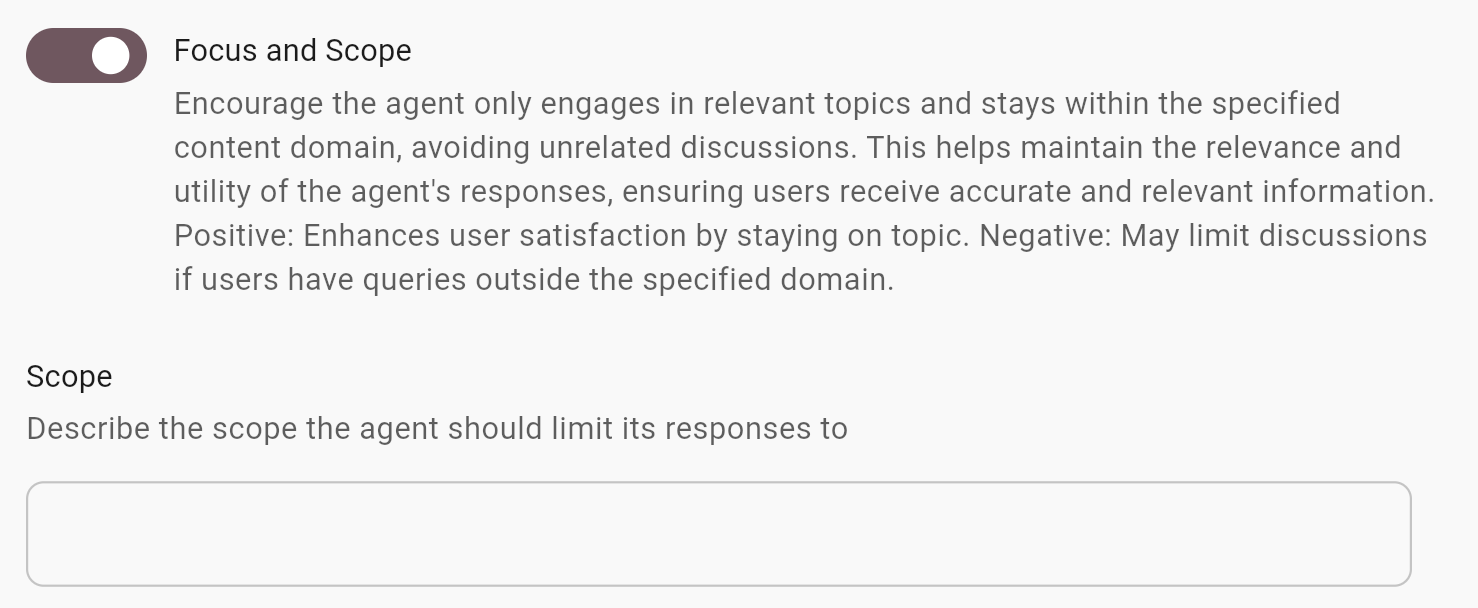
Focus and Scope |
Encourage the coach only engages in relevant topics and stays within the specified content domain, avoiding unrelated discussions. This helps maintain the relevance and utility of the coach's responses, ensuring users receive accurate and relevant information.
|
|
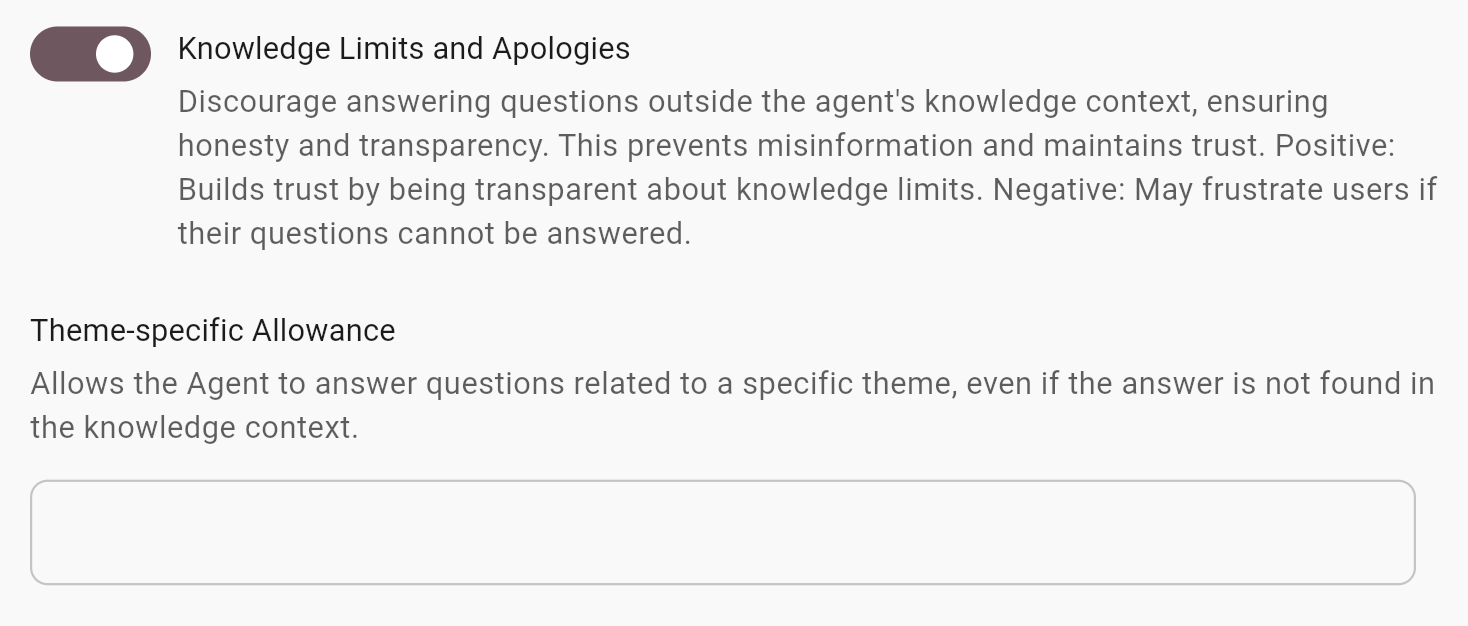
Knowledge Limits and Apologies |
Discourage answering questions outside the coach's knowledge context, ensuring honesty and transparency. This prevents misinformation and maintains trust. Positive:
|
|
Non-Context Segment Message |
Provides a specific message to be injected into the coach's system if there are no matching segments returned from the RAG system. This helps prevent hallucination by informing the coach of the absence of matching information. Example: If there are no matching courses, you should not recommend any courses. 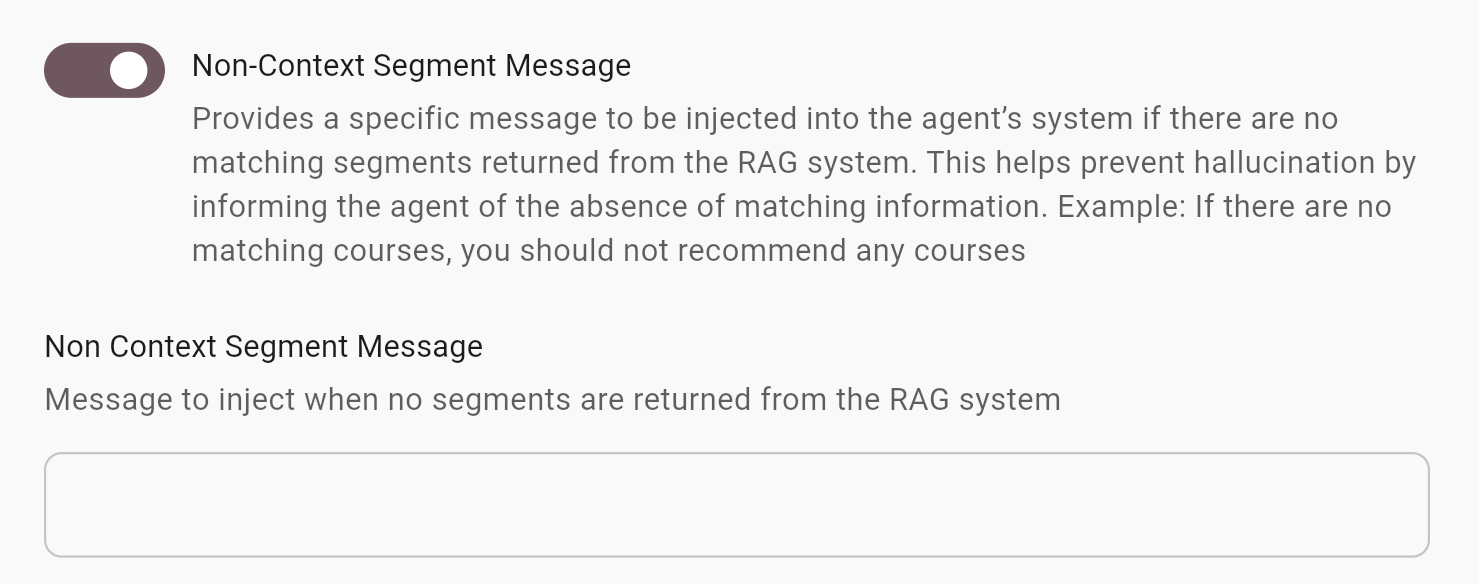
|
|
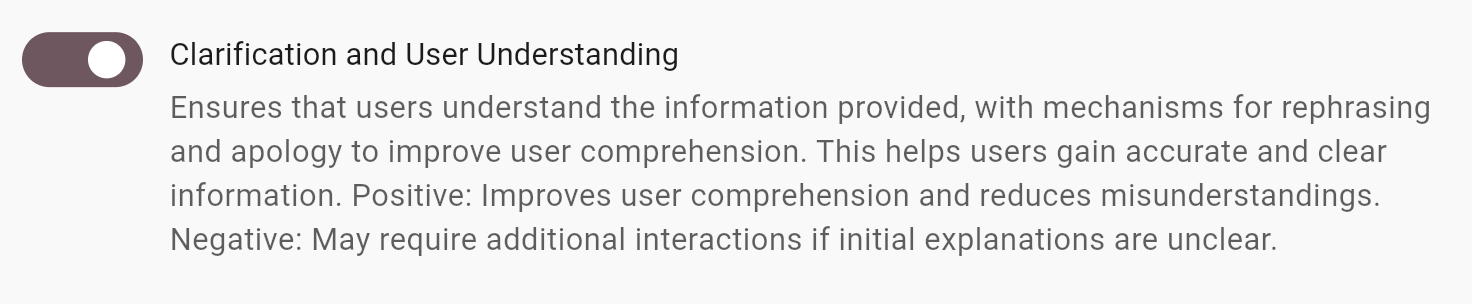
Clarification and User Understanding |
Ensures that users understand the information provided, with mechanisms for rephrasing and apology to improve user comprehension. This helps users gain accurate and clear information.
|
|
Recommendations and Examples |
Provides multiple recommendations or examples where relevant to enhance user choice and understanding, ensuring that users receive comprehensive support.

|
|
Neutrality |
Ensures neutrality in referring to individuals or authors, avoiding gender-specific references to promote inclusivity and fairness.

|
|
Professional Conduct and Bias |
Maintains professionalism and ensures responses are free from bias and unprofessional language, promoting a respectful and inclusive environment.

|
|
Avoid Legal and Financial Advice |
Prohibits providing legal or financial advice and encourages consulting qualified professionals to ensure users receive appropriate guidance.

|
|
Deflect Safeguarding and Sensitive Issues |
Ensures user safety by not engaging in sensitive topics or safeguarding issues. Instead, the coach will encourage users to contact the provided email for appropriate support, promoting a secure and supportive environment.

|
|
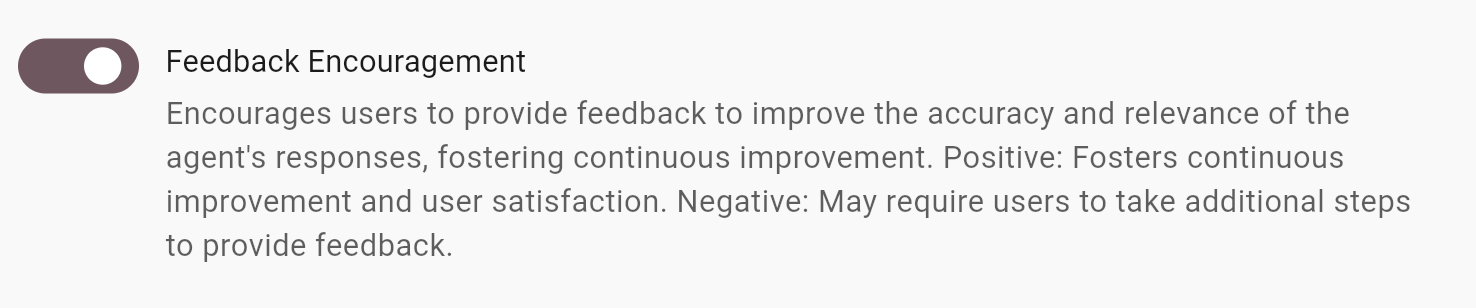
Feedback Encouragement |
Encourages users to provide feedback to improve the accuracy and relevance of the coach's responses, fostering continuous improvement.
|
|
Additional Policy rules |
Here you can specify custom, additional rules for the policy your coach must adhere to. The policy rules are the specific operational guidelines that dictate what the coach can and cannot do. It should include limitations on the scope of the coach's responses and actions, as well as safeguards against it undertaking tasks outside its designated role. 
|
|
Additional information |
The Additional information equips the coach with essential background or contextual information that influences its interactions with users. This could encompass guidelines on tone, references to external knowledge not contained within its training data, or directives on handling sensitive topics. Use this field to ensure that the coach's responses are appropriately informed by considerations beyond its standard operational knowledge. 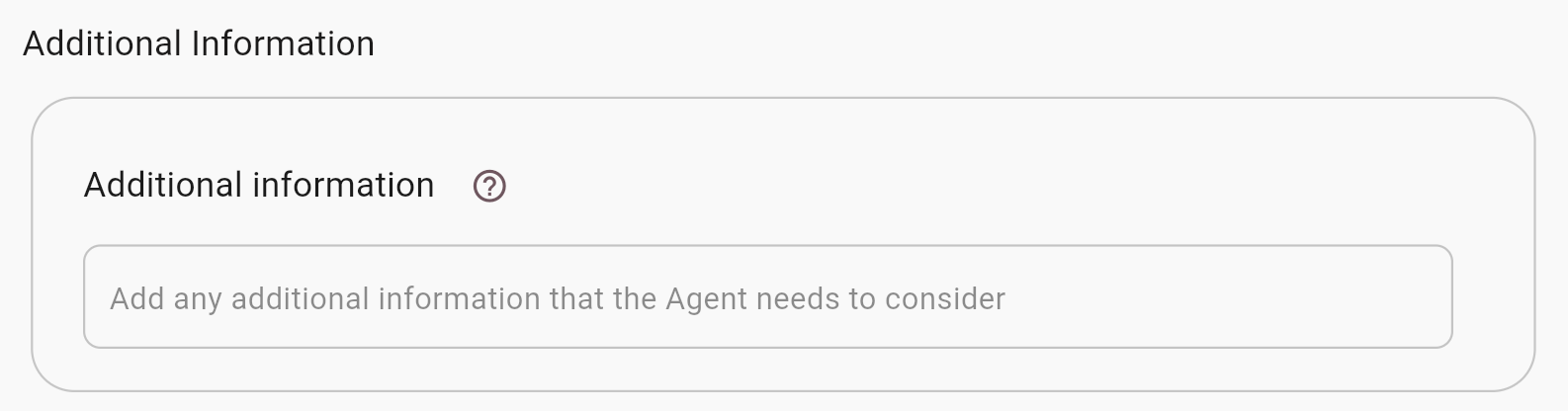
|
Options
In the Options tab, you can configure various settings related to how certain elements are styled and presented to users when they are using and interacting with the coach, such as whether to show topics, source content, citations and so on.
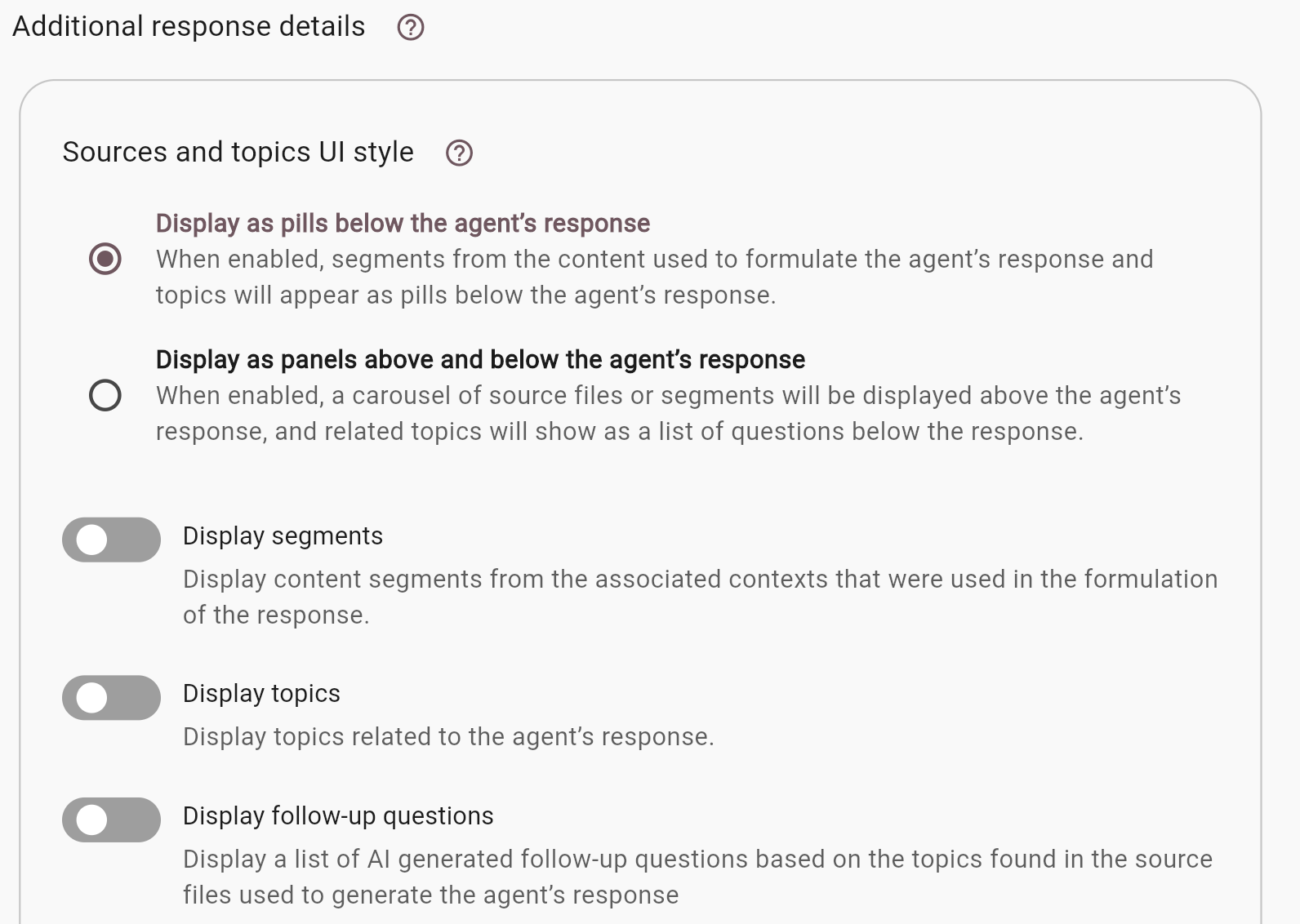
The following settings are available in the Options tab:
|
Setting |
Description |
|---|---|
|
Prompt Library |
Display the prompt library for all connected contexts. |
|
Sources and topics Ul style |
Display as pills below the agent's response: When enabled, segments from the content used to formulate the agent's response and topics will appear as pills below the agent's response. 
|
|
Display as panels above and below the agent's response: When enabled, a carousel of source files or segments will be displayed above the agent's response, and related topics will show as a list of questions below the response. 
|
|
|
Display sources |
Display content from the associated context that was used to formulate the agent's response. |
|
Display follow-up questions |
Display a list of Al generated follow-up questions based on the topics found in the source files used to generate the agent's response |
|
Show quick replies |
Display clickable buttons when the agent suggests clear options or next |
|
Display speakers |
Display speakers from the content that was used in the formulation of the |
|
Display Citations |
Display citations within the agent response which link back to the source of the information in the knowledge |
|
Advanced Configuration |
Agent diagnostics: Display a debug code block in the Agent response (for App Admins only). 
|
|
Inject Source URL: For segments extracted from web pages, inject the URL of the original web page where the segment content was sourced from. 
|
LLM
In the LLM tab, you can select the large language model (LLM) that you want to use for your coach.
The following LLMs can be selected:
|
LLM |
Description |
|---|---|
|
Mindset Recommended |
GPT 4.1: Recommended for the right balance between cost, intelligence and speed. Great for everyday work. Handles most text tasks well - writing, answering questions, and coding. Good at remembering long conversations and following instructions carefully. |
|
GPT 4o
|
Older generation LLM but a crowd favourite, fast and reliable intelligence. Quick responses with good quality. Solid choice when you need fast, consistent answers for most text- based |
|
GPT 5 |
Very smart and fast. High-performance model that's faster than Thinking mode while still being very intelligent. Good balance when you need advanced capability without the |
|
GPT 5 Thinking |
The absolute best. Most capable model available. Takes time to think deeply through problems but gives the most accurate, comprehensive answers. Use when you need the highest quality as responses are |
|
GPT 5 Mini |
Smart but affordable. Good intelligence at lower cost. Faster than full GPT-5 while still being very capable. |
|
Claude Sonnet 4 |
Thoughtful and creative. Very good at writing and analysis. Known for careful, well-reasoned responses and being the most creative. |
|
Gemini 2.5 Pro |
Top-tier reasoning and coding. Google's most advanced model with exceptional reasoning abilities. Leads in math, science, and coding benchmarks. Handles massive context (1M+ tokens) for big or complex projects. |