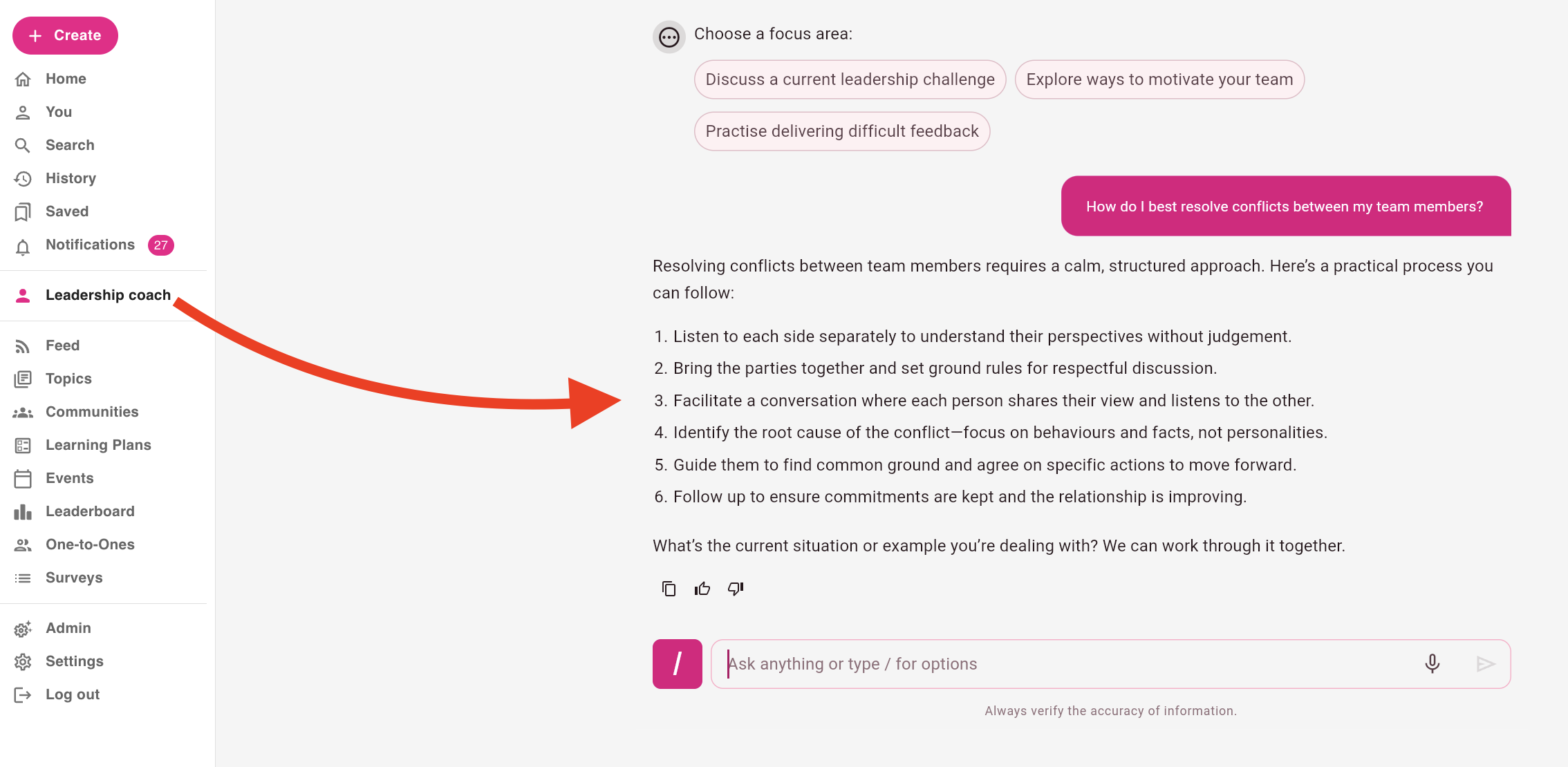
The AI Coach feature is currently in beta and may be subject to change.
When you have created your AI coach, including configuring and adjusting the settings, added the correct communities with the source content inside, and previewing the output, you can make your AI coach available to users through the side navigation. To do this, you must select the communities that will have access to coach. All members of a selected community will be given access to the coach, including the information referenced from the source content in the selected source communities in the Knowledge tab.
To grant access to one or more communities:
-
On the AI Coach management screen, locate the coach you have created, and click Edit.

The edit screen for the selected coach opens.
-
Click the Access tab.
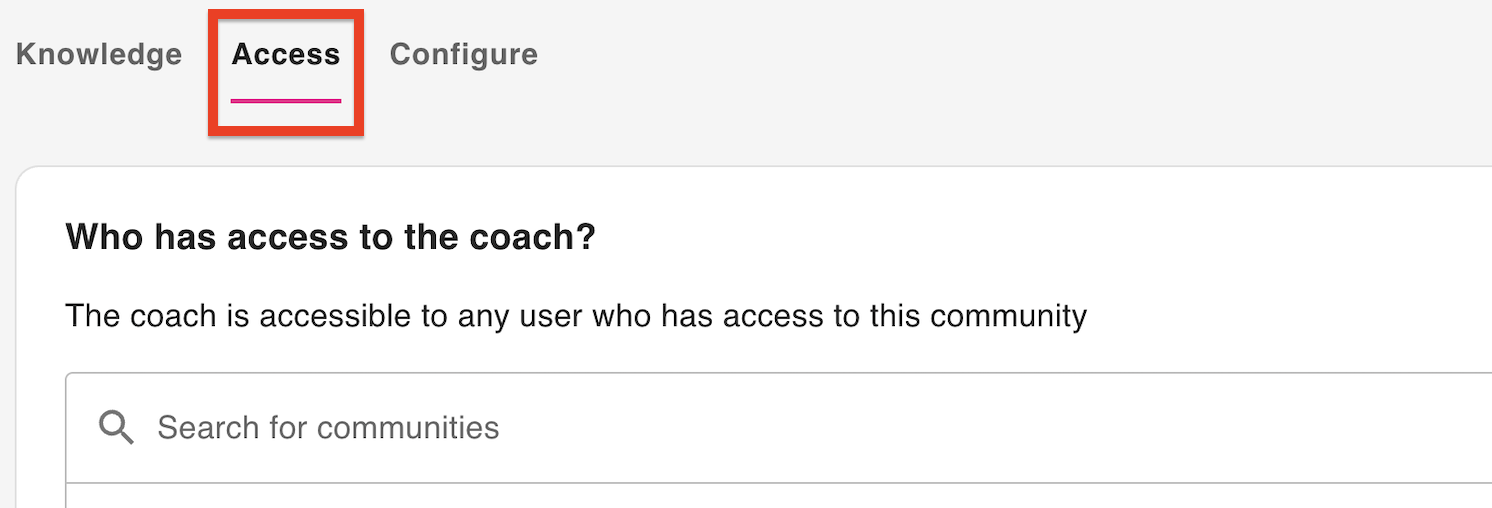
The Access tab opens.
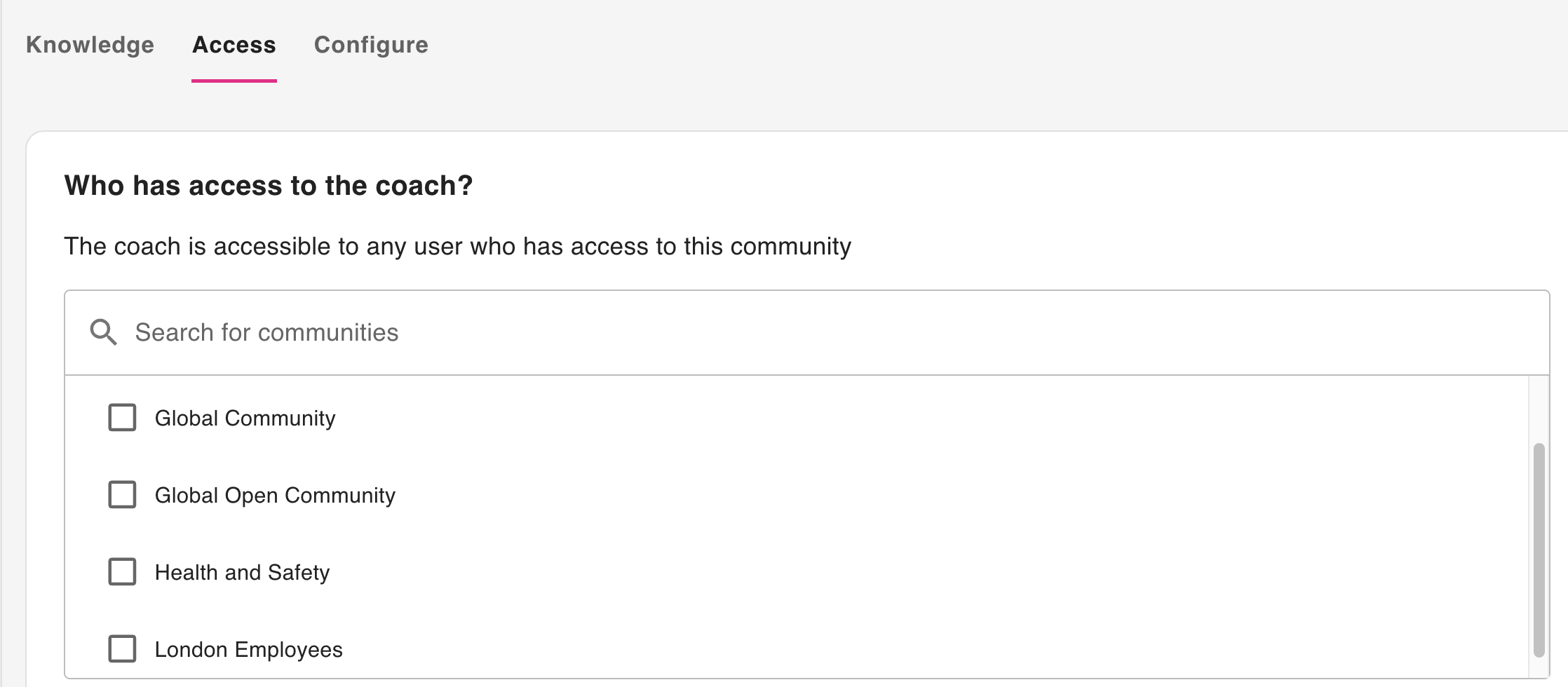
-
In the Who has access to the coach? section, search for and select the communities who will be able to access the coach on the side navigation. For example, if your coach is designed to help all the managers in your organisation improve their management skills, you might add a community that is exclusively for users who are managers with reportees. Only those users in the selected communities will be able to see and access the coach on the side navigation.
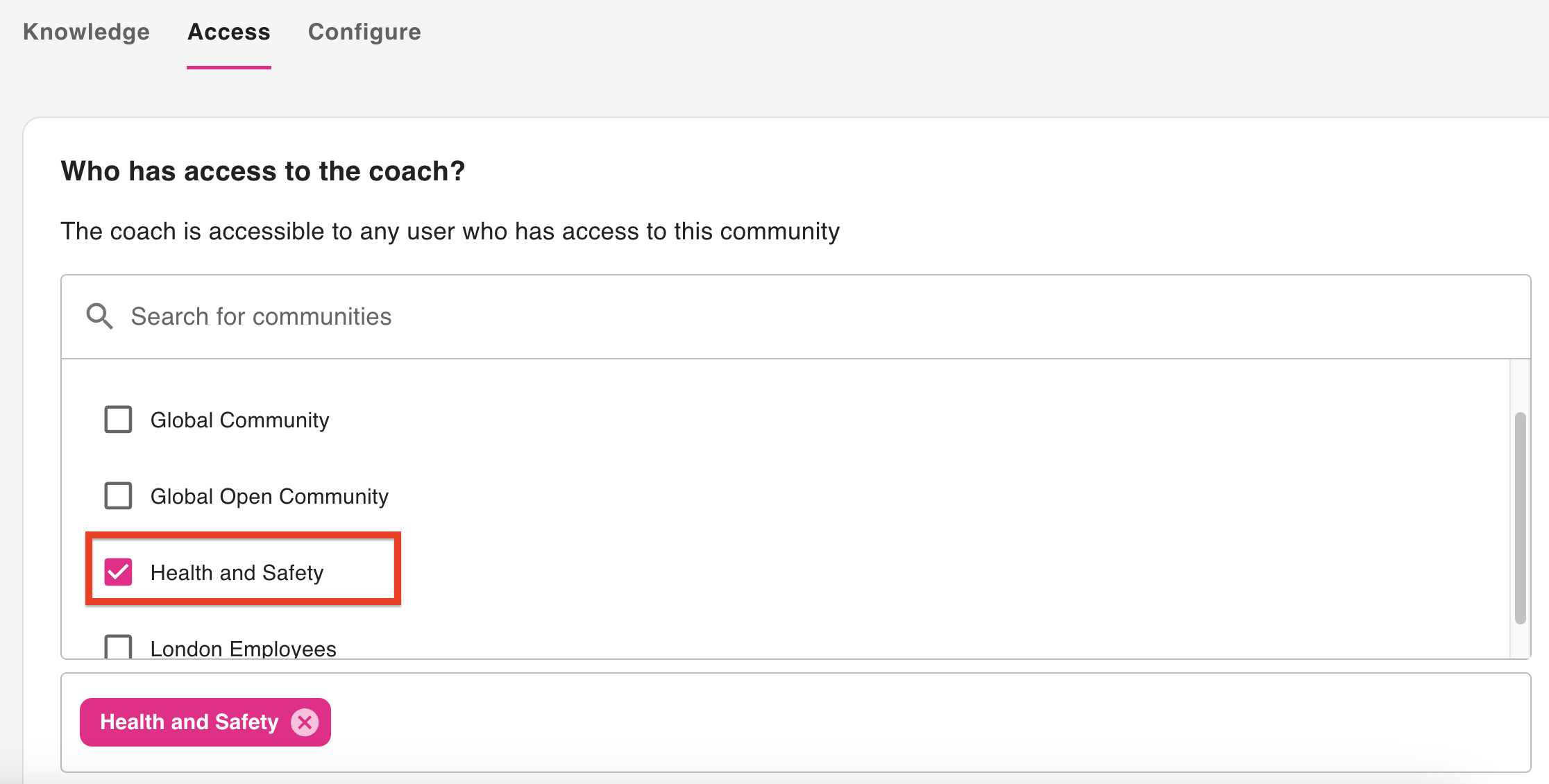
The selected communities appear in the field underneath.

-
Click Save.
The users in the selected communities now have access to the coach on the side navigation in your platform.