
If you are a community admin, you can enable sequential learning on a learning plan to guide users through content in a set order. When sequential learning is enabled, users must complete each section before the next one unlocks — helping them build their understanding step by step before moving on to more complex material.
Sequential learning is especially useful for compliance-based learning, onboarding programmes, or any scenario where foundational knowledge needs to be in place before users progress.
Example scenario
A financial services company needs all new starters to complete a compliance induction before accessing advanced product training. By enabling sequential learning on their onboarding learning plan, admins ensure that Section 1 (regulatory basics) must be fully completed before Section 2 (product knowledge) becomes available — so no one skips ahead without the right foundation.
How sequential learning works
When sequential learning is enabled on a learning plan:
-
The first section is unlocked and available straight away.
-
Each subsequent section is locked until all content in the previous section has been completed.
-
Locked sections are visible to users but cannot be accessed until the preceding section is done.
-
Once the final section is completed, the learning plan is marked as complete.
Sequential learning works at the section level. Each section can contain a mix of content types — including topics, SCORM courses, and events. All content within a section must be completed before the next section unlocks.
The order of sections is determined by the order of content in the learning plan editor — the sequence in which content is arranged controls how the sections display to users.
Enabling sequential learning on a learning plan
To enable sequential learning on a new or existing learning plan:
-
Navigate to the community where the learning plan lives and click Settings.
-
On the left-hand menu, click Learning plans.
-
Click Create a new learning plan or click the title of an existing learning plan to edit it.
-
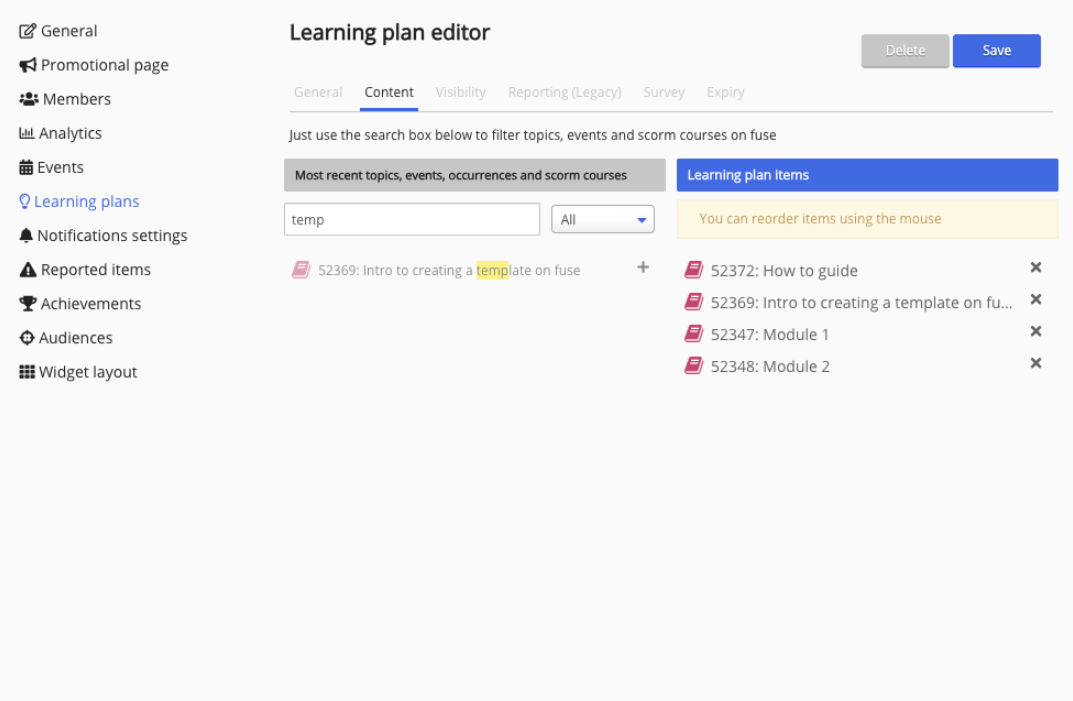
In the learning plan editor, arrange the sections in the order you want users to complete them by dragging and dropping them into position.
-
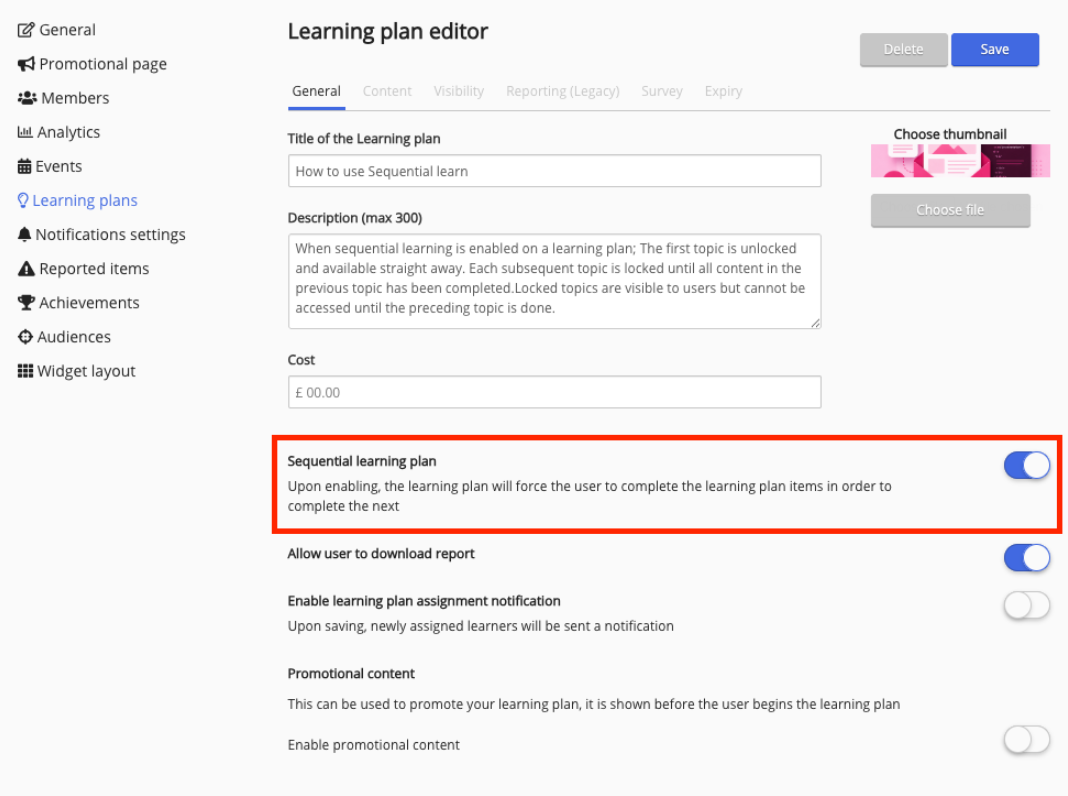
Toggle on Sequential learning.
-
Click Save.
Sequential learning is now active. Users will only be able to access the first section until they complete it, at which point the next section unlocks automatically.
Turning off sequential learning
You can toggle sequential learning off at any time. When you do:
-
All sections in the learning plan become immediately accessible to users.
-
Existing progress is retained — any section already completed remain marked as complete.
Turning sequential learning off mid-way through a user's journey will not reset their progress. Users who have already completed sections will keep their progress, and previously locked sections will become accessible straight away.
What users see
When sequential learning is enabled, users see the learning plan overview page with all sections listed. The first section is open and ready to start. Subsequent sections appear as locked, with a clear indicator that they need to complete the previous section first.
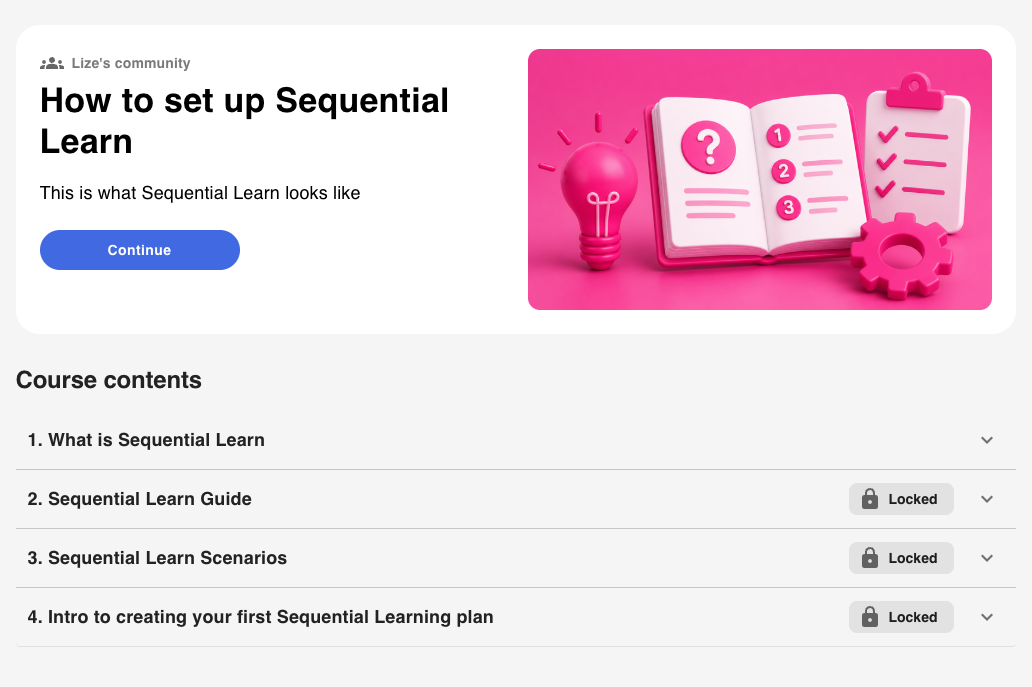
Once a section is completed, the next one unlocks automatically — no need for users to refresh or take any additional action.
Formal assessments in learning plans
If a section in a learning plan includes a formal assessment, users can access it directly from the learning plan overview page. A View Assessment button appears on the section card.
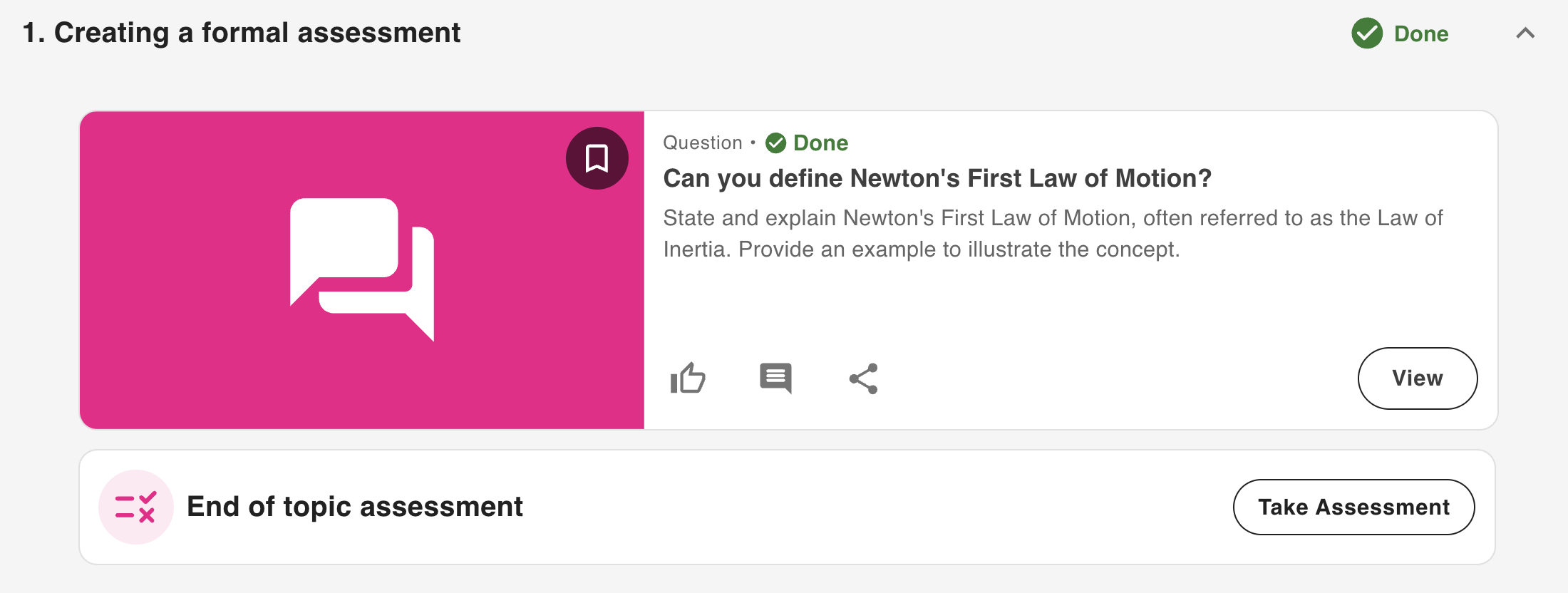
When sequential learning is enabled, the formal assessment counts as part of that section’s completion. This means:
-
Users must complete the formal assessment in the current section before the next section unlocks.
-
If a section contains both content and a formal assessment, both must be completed for the section to be marked as done.
-
Sections that contain only a formal assessment and no other content are fully supported — the assessment card will appear on its own within the section on the overview page.
Formal assessments within a learning plan are accessed in the context of that plan. This ensures access is correctly scoped — users can only reach the assessment via the learning plan they're assigned to.
For more information on creating and configuring formal assessments, see Formal assessments.
Things to know
-
Sequential learning is set per learning plan — you can have some learning plans with it on and others with it off.
-
The sequence is based on the order of the content in the learning plan editor. To change the order, edit the learning plan and rearrange the content before saving.
-
Learning plans do not have prerequisites across other plans — sequential learning only applies within a single learning plan.
-
Sequential learning is only available on the new learning plan UI. It is not supported on the legacy UI.
For information on how to add and arrange content in a learning plan, see Creating a learning plan.